
Riverbed CRM Process
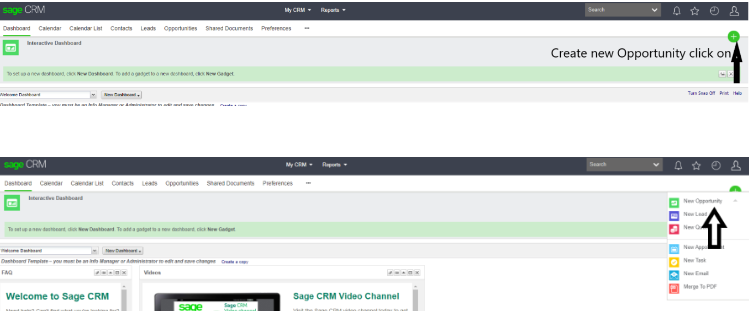
Step 1: Create a new Opportunity.
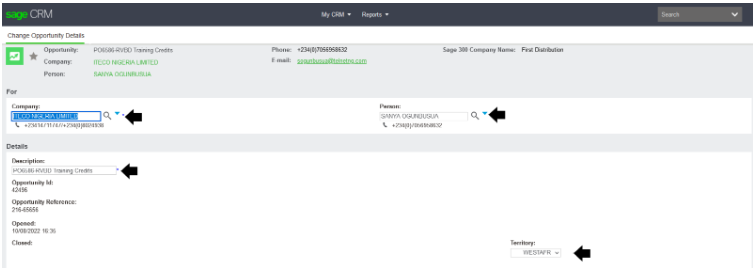
Step 2: Check if the partner is onboarded and has a contact loaded.
Add a partner, then contact the person and complete the description box with a short description of the opportunity. Territory stays on Default. Once save has been clicked, an opportunity has been created. Ensure the territory is updated correctly (should not say worldwide)
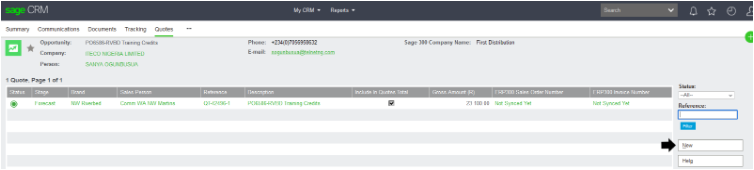
Step 3: Click on the new quote.
Step 4:
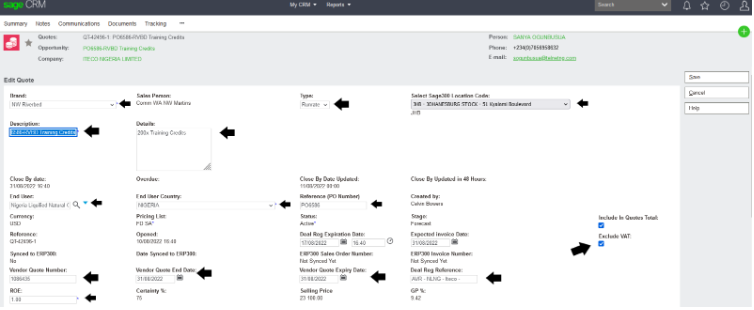
- Brand: as NW Riverbed
- Description: what you are quoting
- End User: Search and choose correct end user (if not available or not disclosed, use TBC (To Be Confirmed)
- End User Country: Select correct Country
- ROE: 1 for USD Based Customer, Spot ZAR rate applies to in Country sale
- Type: Runrate, Project or Tender
- Excluding Vat: Only tick the box when partner is not in SA
- Click Next
Step 5:
- Once you have clicked on Next, the below page will appear
- Create your line item/s, select New Line item
- Search for the SKU required. Riverbed’s prefix is 36 so always start your SKU with the prefix.
You may use the % key in front of the prefix to broaden your search options.
- The list price/our cost should automatically be populated within the USD List Price field
- Select desired Quantity
- Riverbed works on Discount % from the List price, Product/Brand Manager will advise on the discount off Split.
**note, please tick exclude system margin if this option is required**

- Click save to proceed with quote calculation or save & new if multiple line items are required, repeat Step 5 for multiple line items on the quote
Step 6:
- Once the quote is correctly populated, select Calculate Quote Totals to calculate your margin and Total amount, as well as the GP and Margin %
- Double-check that the above has been totalled correctly.
- Click Accept if in good order

- Add tracking note and click save

- Once completed, it will take you back to the Quote page and the quote will go into the New Quote stage.
- Put into the Identified stage and add a tracking note

- Once completed, it will take you back to the Quote page and the quote will go into the Identified stage.
- In order to generate the quote to the client and/or to sales, click on the print quote button
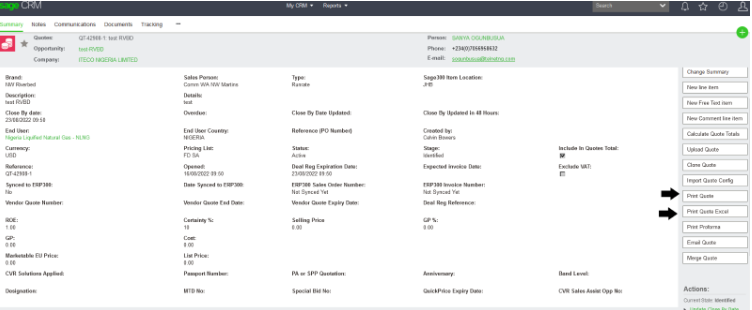
- Click on the Paperclip or on the file itself to view the attachment.

- Save to your appropriate folder and send to sales/client.