
Nozomi CRM AND ACCPAC Quote Process
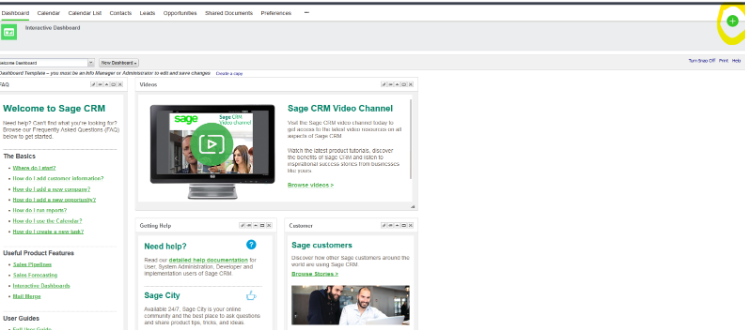
Open up a New Opportunity By Clicking On the Green Cross and Selecting ( New Opportunity)
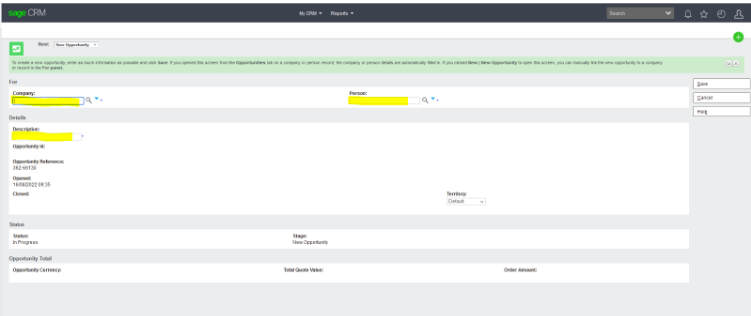
We search the customer/reseller under Company. Then add the person under Person. Under description, you add the solution the customer asking for with End user EG: MEDIRO – BDO ADD ON
After clicking Save.
After clicking, on your right-hand side the green +. Then click New Quote.
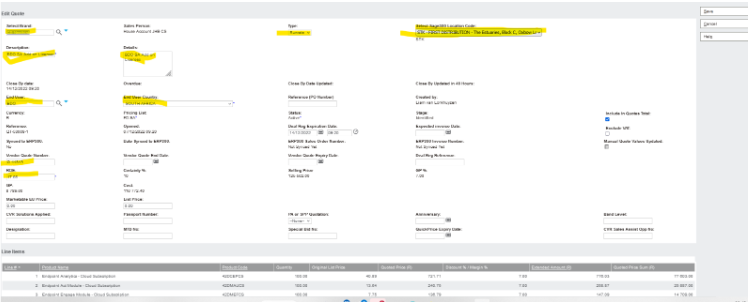
NB Vendor quotes can come in ZAR and USD so ROE may Depend on Vendor quote
Then Click Next.
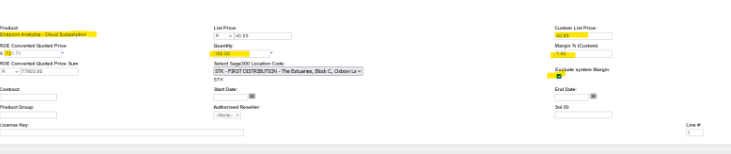
Under Products, you look for the product code which is on the Vendor Quote or if Bertie has prodvided one. You search first with the SKU but add 1N infront first. E.g 1NPSOCNSPM
Quantity you add the Quantity.
Under USD Custom List Price, you the Cost that is Given to you Via Vendor quote
Then select the tick on the Exclude System Margin.
Then click save if you done adding the SKUs or products.
If you have more products, click Save & New so that you add them.
On the next screen – press calculates quote totals to confirm the price. Then Accept and add tracking note, save click on identified and add tracking note
Once AM has Forecast the Opp – go back to Quote and Sync to Sage 300 ERP and add the Sales Order Number and PO number if not already there
Open AccPac – enter SO number and tab. If the account is on hold, send an email to Order Release with any approvals:
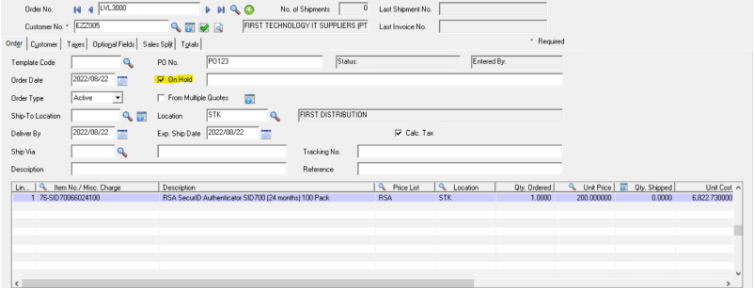
Once the hold is lifted – send the order back to RSA Operations at rsa.ops@firstdistribution.com
With pertaining the following Documents and Info
- First Distribution quote with the Latest ROE
- End user Order form
- Vendor quote
- Customer PO
- Order Number on Accpac
Subject Line (Order number – Partner – Brand – End-user )