Kaspersky CRM Steps
- Create new Opportunity
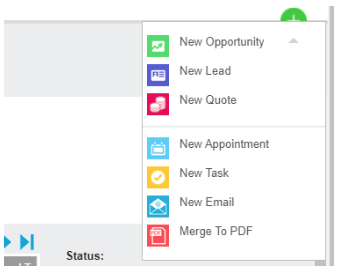
2. Insert the % then put the contact person’s name. If the company is loaded it should it be underlined. But if you are not sure about the contact person use the company name instead and choose a contact from the provided drop-down list.
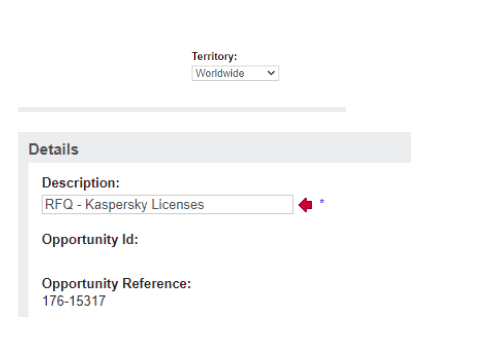
Put a description of the opportunity. Always check that the territory is not on Worldwide if It is changed to the correct territory(It should never be on Worldwide), then save.

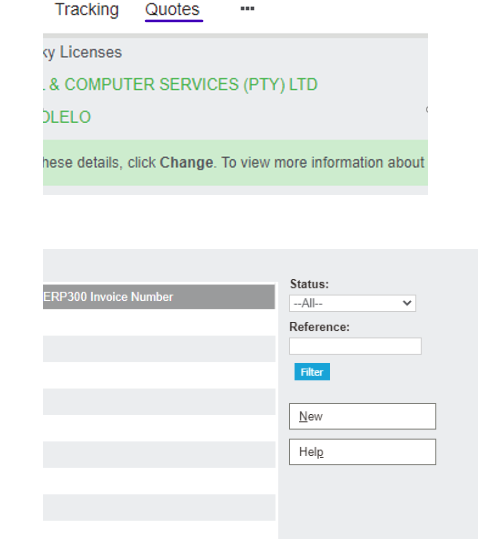
3. To create a new quote click on quotes, then click on new.
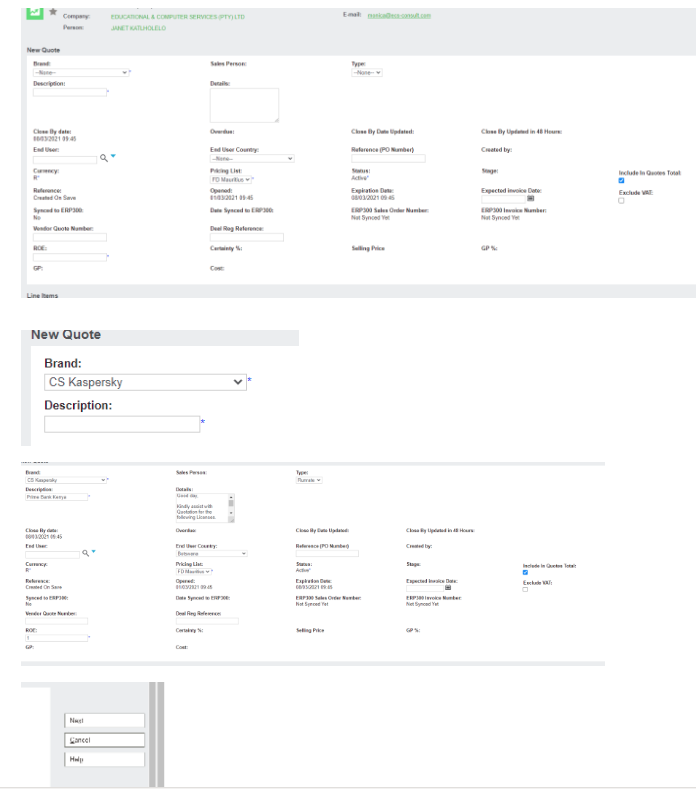
4. This will take you to the quote summary page.
- Select the brand you are quoting.
- Insert your description.
- Select type(Tender, project, run rate)
- Insert the End user. (If the end user is loaded the name should be underlined)
- Select the end user country and choose the correct country.
- If you have a vendor quote insert the vendor quote number, Vendor quote End date, and vendor quote expiry Date.
- Depending on where the customer is based, insert the day’s ROE, if you are using the SA CRM and the partner is based in SA you will use 1 as your ROE to avert conversion.
- If you are quoting a customer that is not SA-based, MAU-based or Kenya-based ( depending on which company CRM you are using tick the Exclude VAT box unless based in the 3 mentioned countries.
- Click next to save.
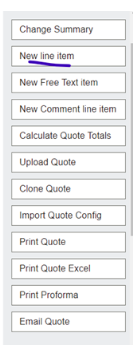
5. Select a New line item.
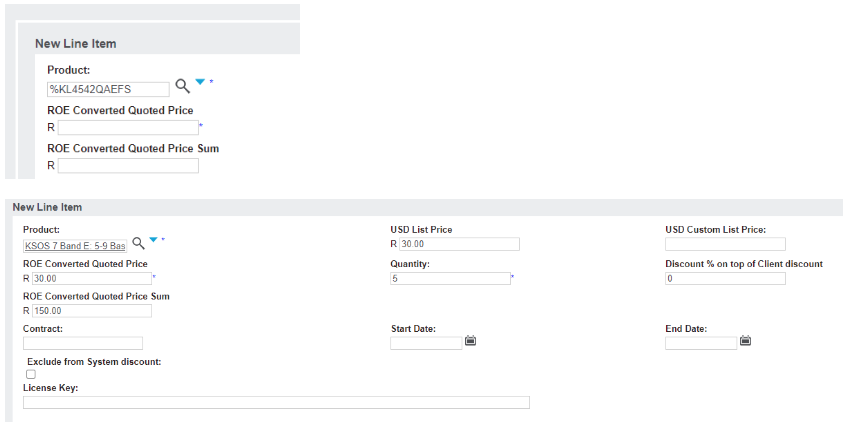
6. Search for the SKU by inserting % then the SKU.
- If the list price is loaded it will appear on the USD List Price, if not you will need to insert it on the USD custom list price.
- Insert the quantity, partner discount
- When using margin exclude the system margin and save.
- With discounts, the system has preloaded discounts for partners, if not exclude systems discounts and insert the discount you are passing.
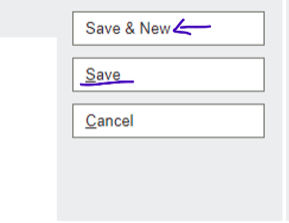
- If you quote a one-line item quote click save.
- For more than one line item click save and new.
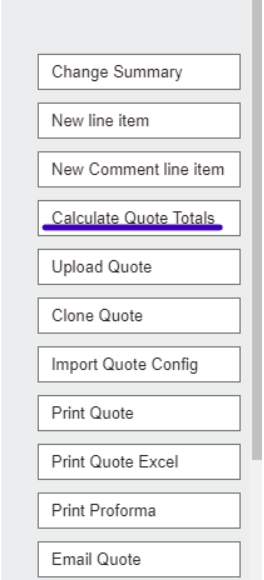
7. Once saved go to calculate quote totals.
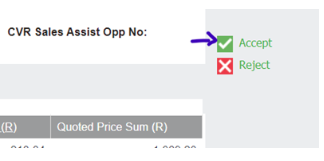
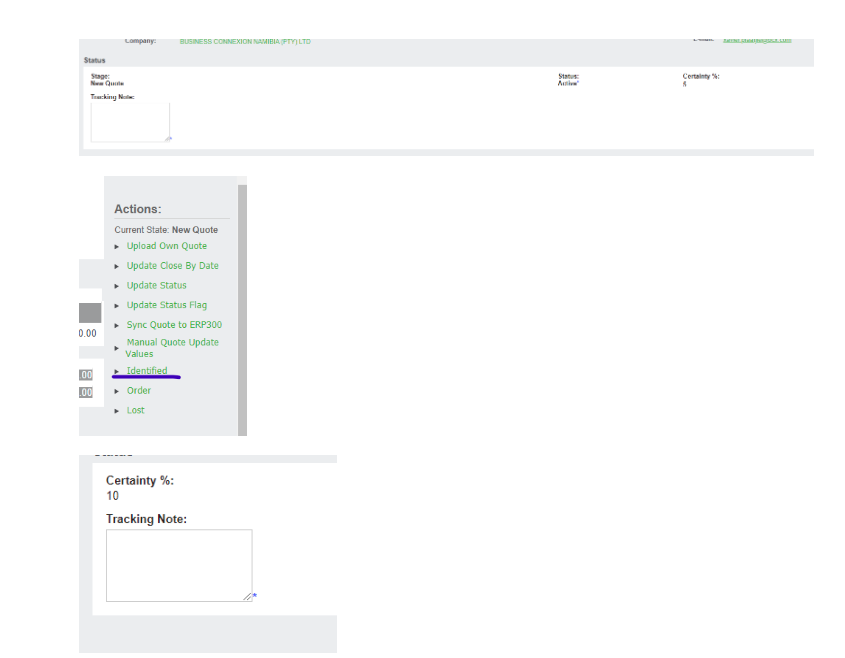
8. When you are happy with the calculation, the Cost looks okay and so does the GP, then you can accept and identify.
Remember to put tracking notes when accepting and identifying.
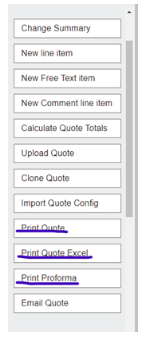
9. Depending on which quote you’d like to print, select the desired quote or if you need a proforma.
Select print proforma and send it to the customer.
10. Once the quote is accepted and the opportunity has been progressed by the salesperson.
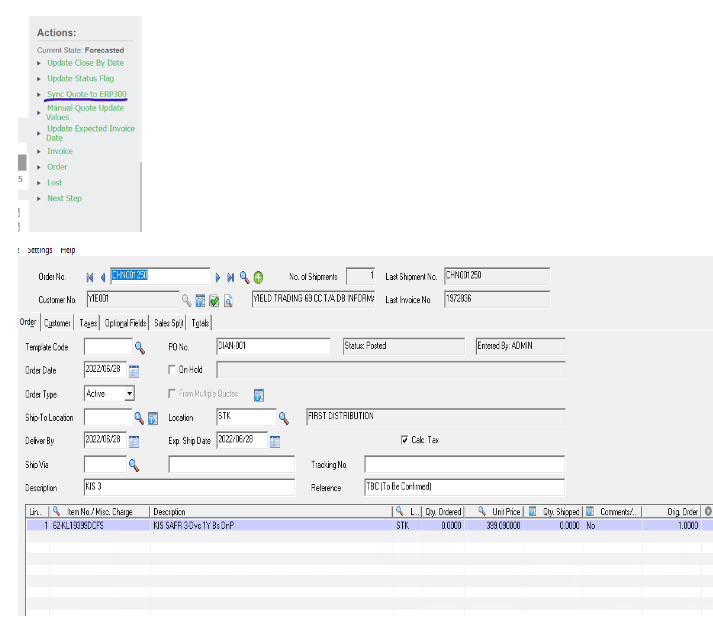
Go back to the quote summary and insert the PO number, save and click on sync quote on ERP300 to convert the opportunity and order.