
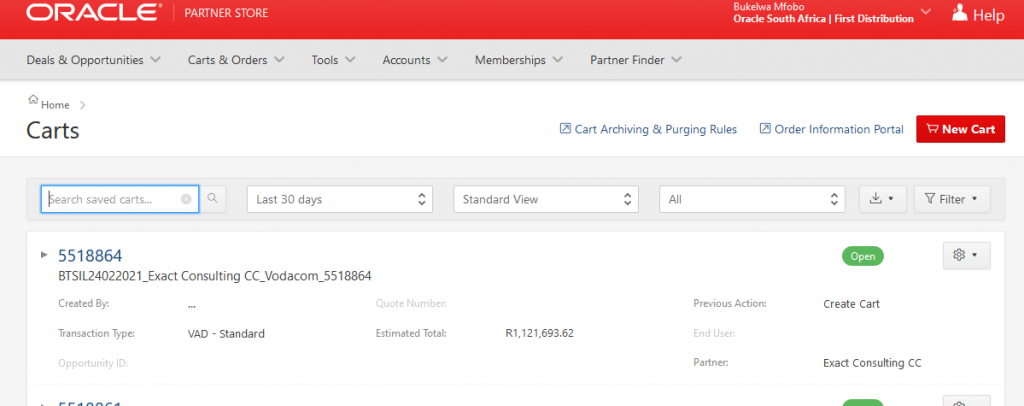
6. Once presales are done create a cart on the Oracle Partner Store, you will log in with your credential and you will be presented with this screen. Click on the cart number to open the cart.
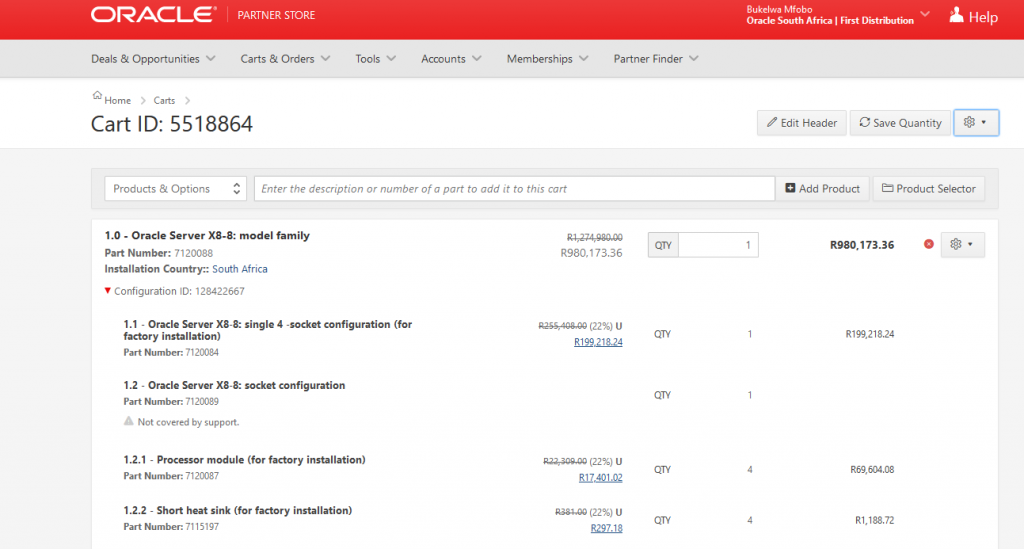
7. Drop down the arrow, you will presented with the export option, click on export.
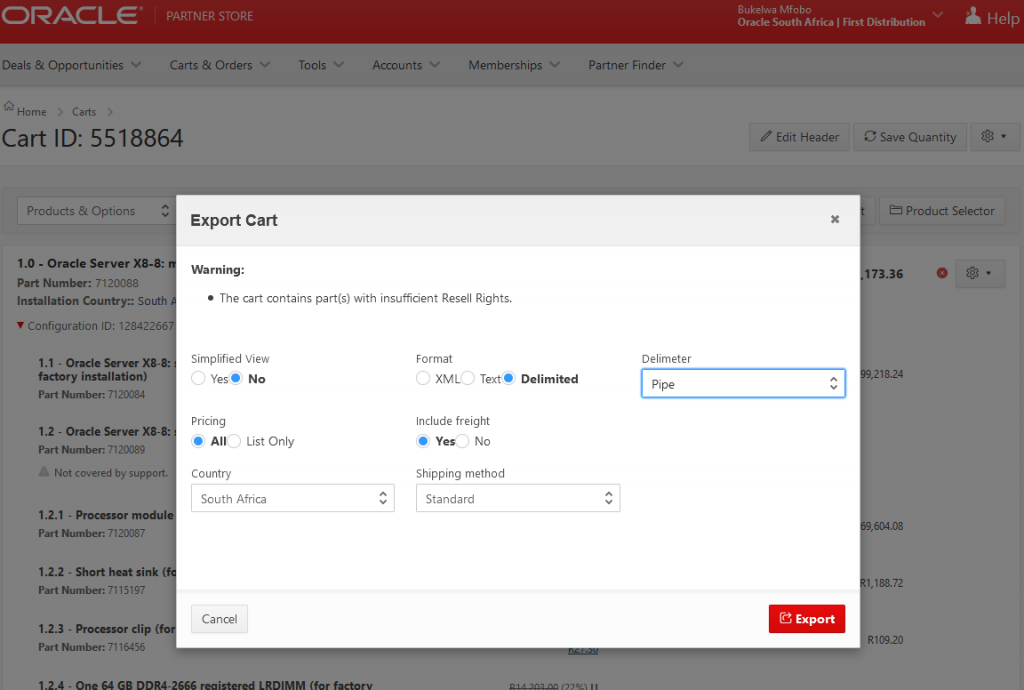
8. Please ensure the following fields are selected:
- Simplified view – No
- Pricing – All
- Include Freight – Yes
- Format – Delimited
- Delimeter – Pipe
- Click Export at the bottom
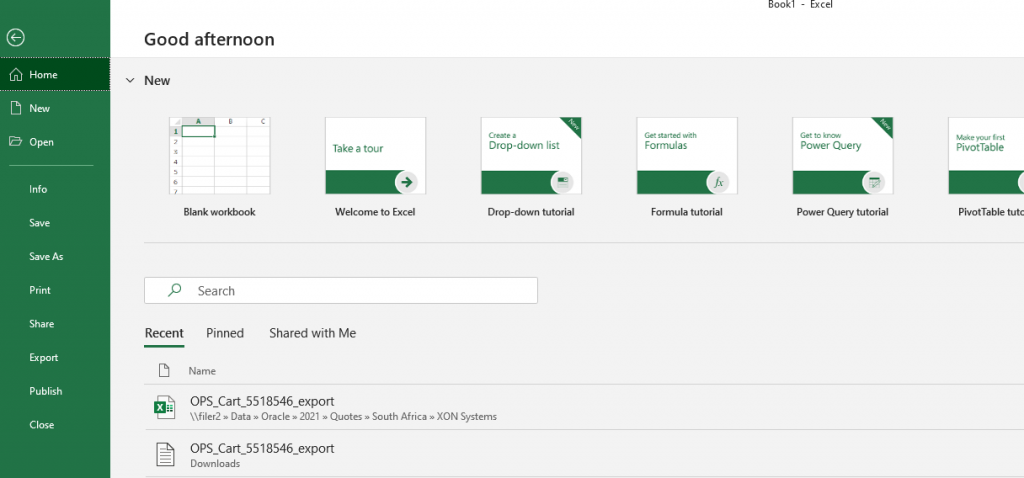
9. Open a black Excel page, go to file and click open and select browse.
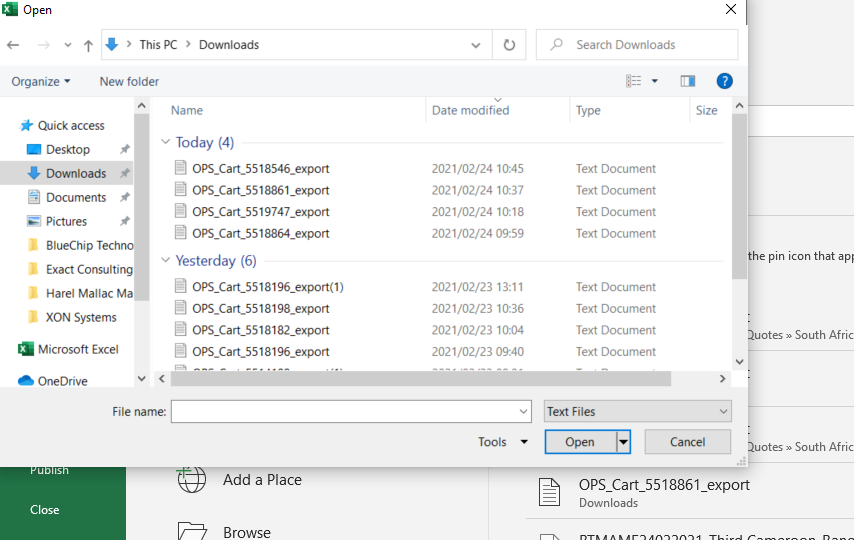
10. Click Downloads, text files, select cart and open. This is where you exported cart will be.
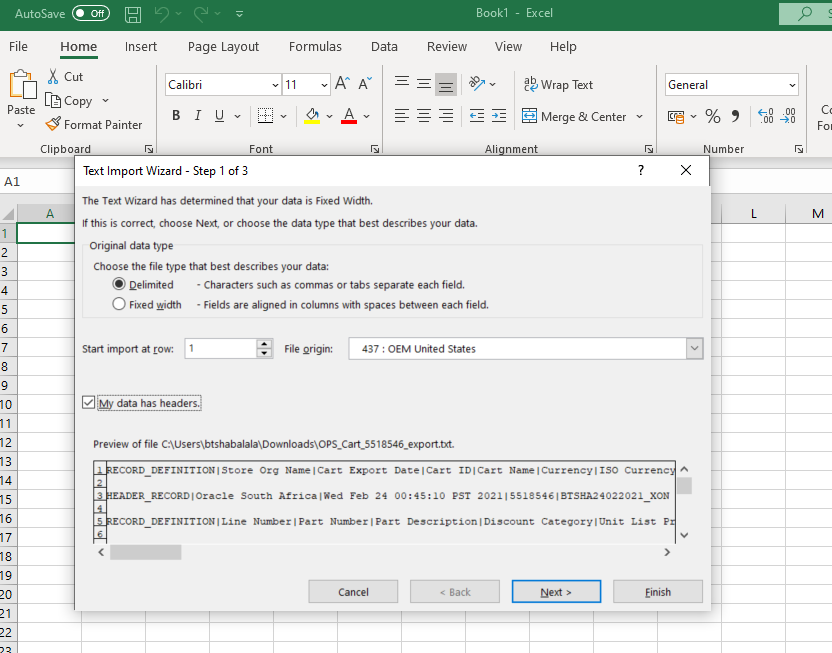
11. The following needs to be completed:
- Choose file Type – Delimited
- Click My data has headers
- Click next
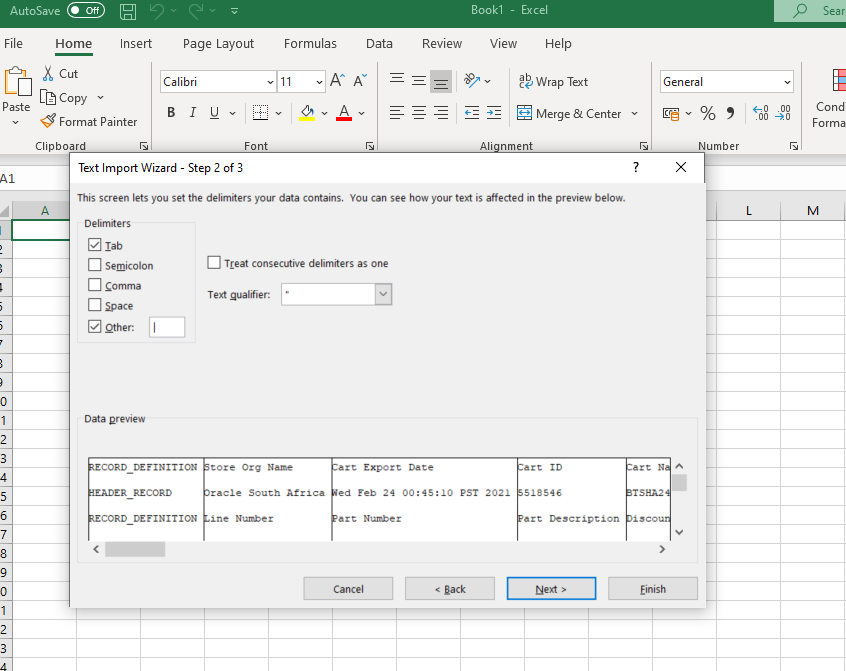
12. Click the following:
- Delimeters – Tab
- Click Other
- Click Next
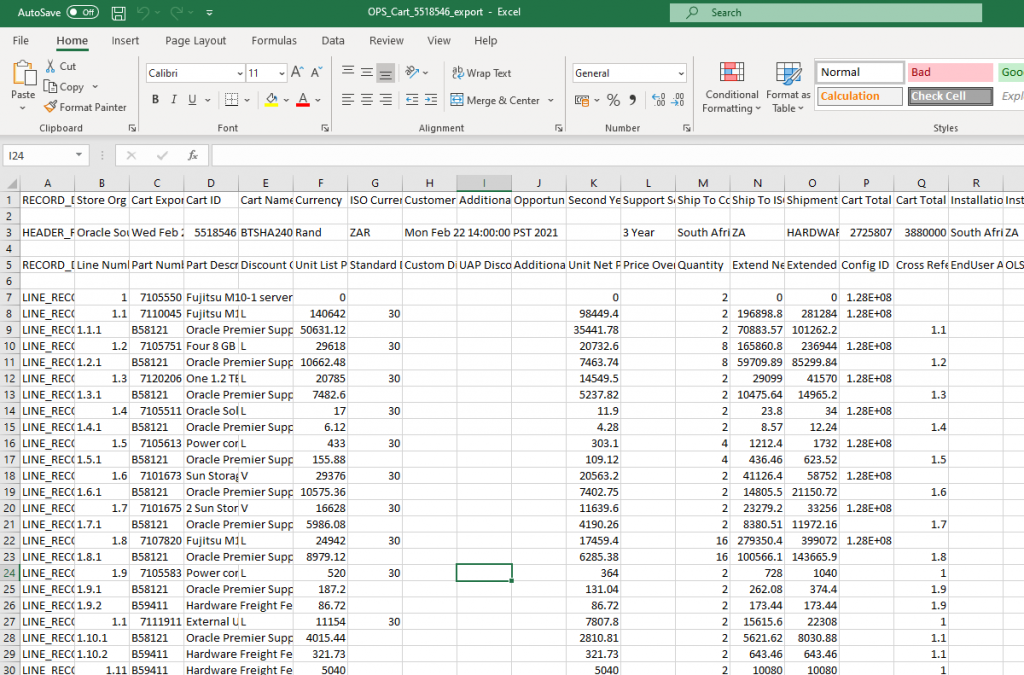
13. Cart will be presented in txt format, save a copy in your Oracle folders as xls file.
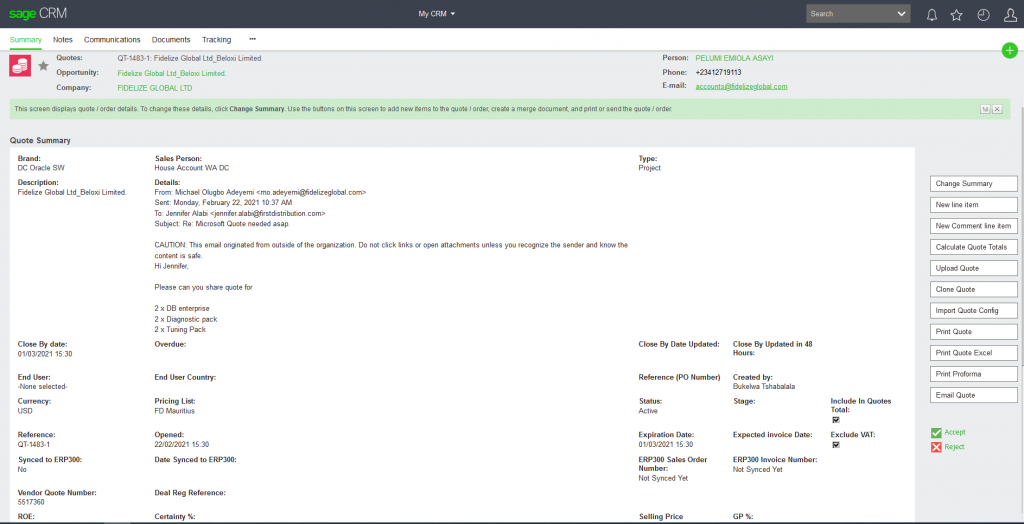
14. Click Documents at the top.
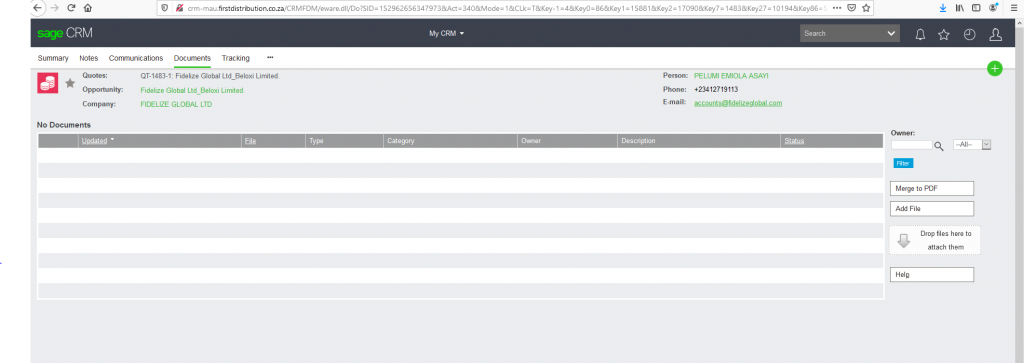
15. Select Add File
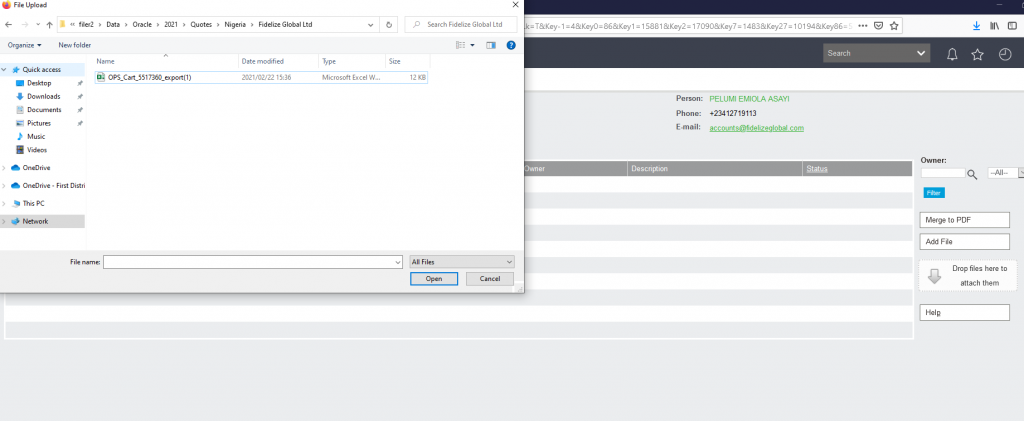
16. Select the cart in xls
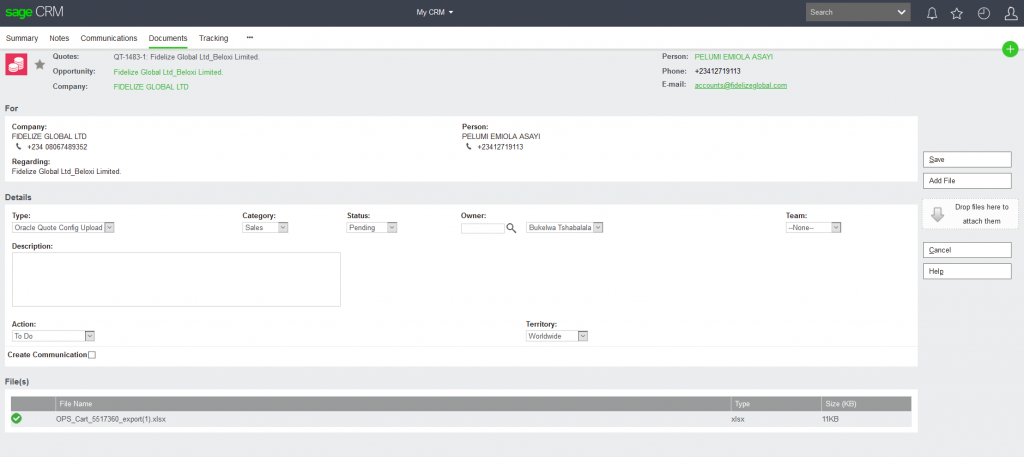
17. Select the following Fields:
- Type – Oracle Quote Config upload
- Status – Pending
- Click save
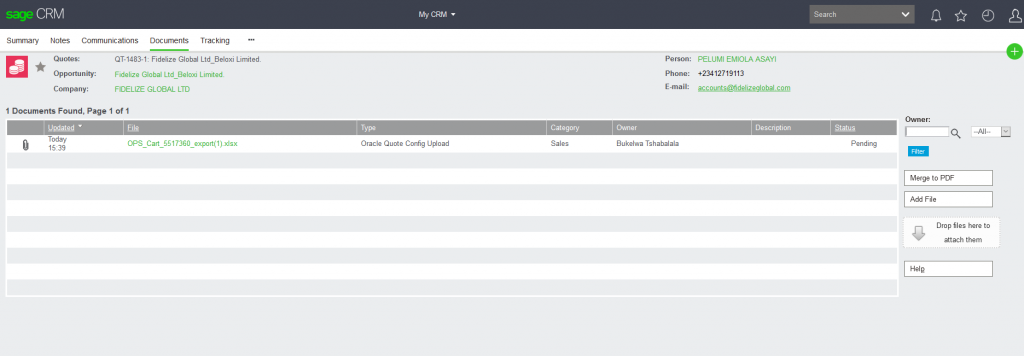
18. Click on quote at the top to return to the Summary screen.
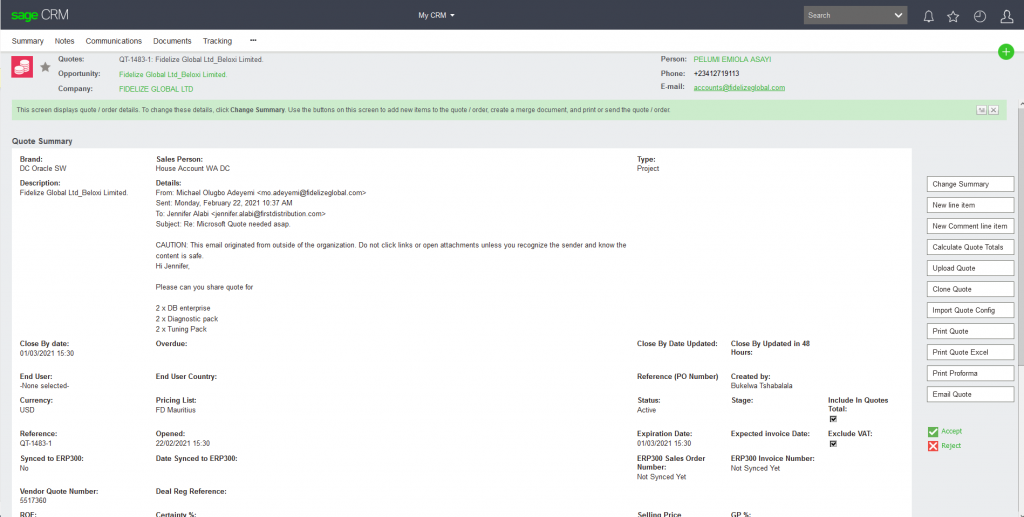
19. Click Import Quote Config and thereafter click on Calculate quote totals
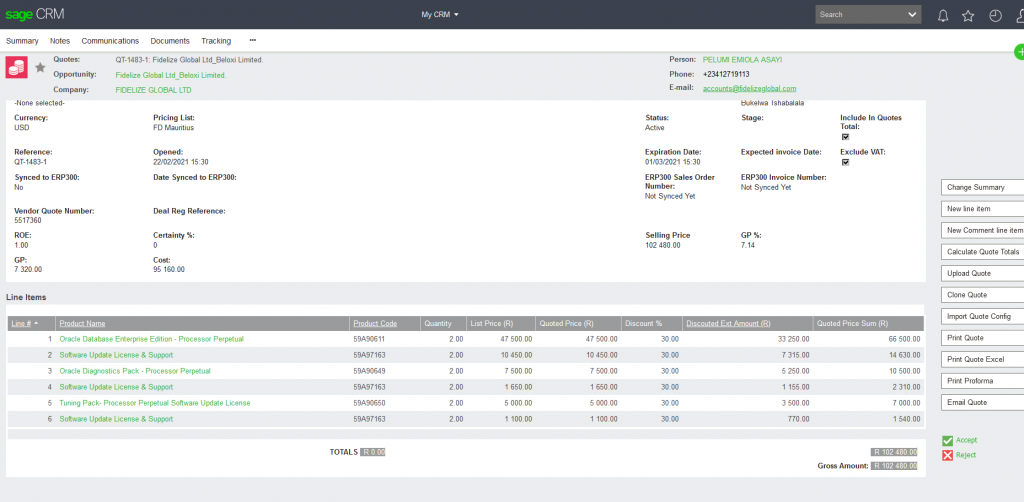
20. Your quote will be presented on the screen, ensure the following is visible:
- Cost Price
- GP value
- GP%
Once done with checks and you are happy with your quote, you click accept on the right-hand side of the screen.
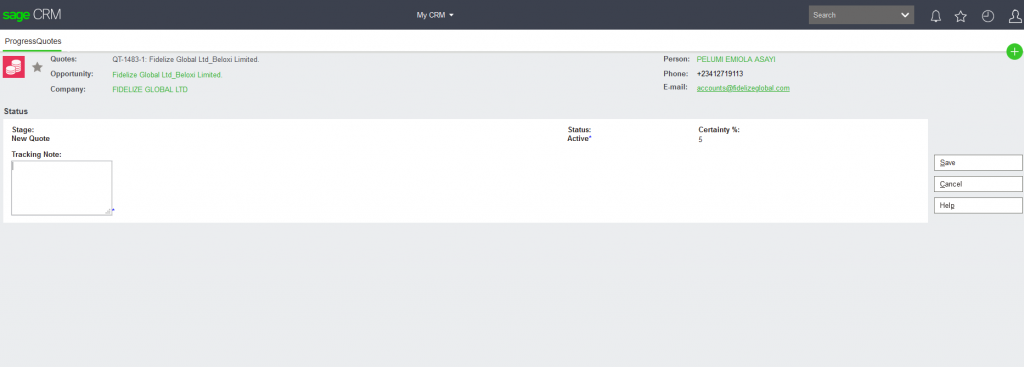
21. Complete tracking note – Quote Accepted and save.
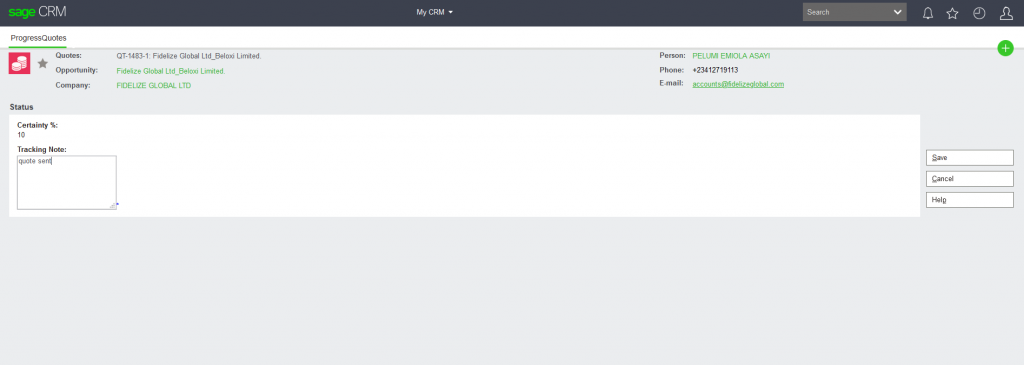
22. Click Identified and fill tracking note, Quote sent, and click save.
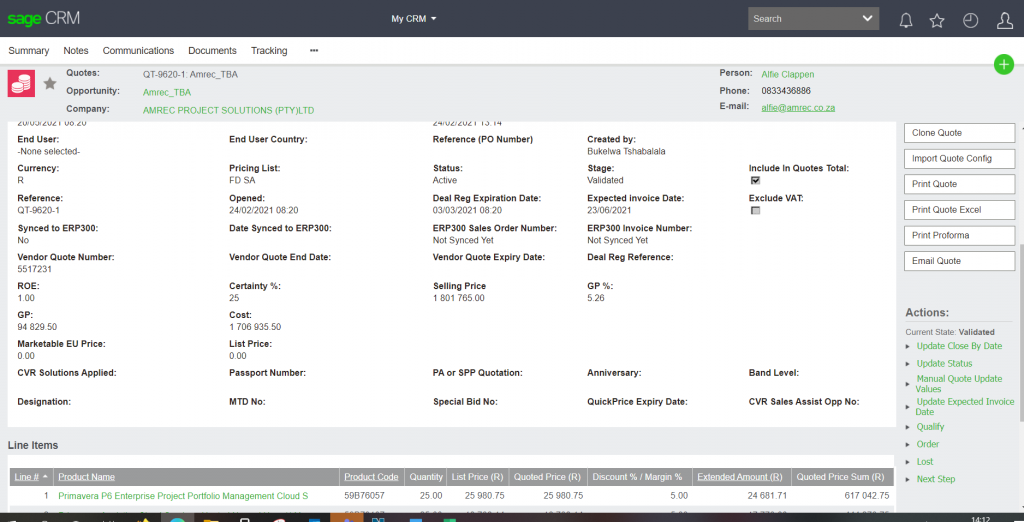
23. Select print quote
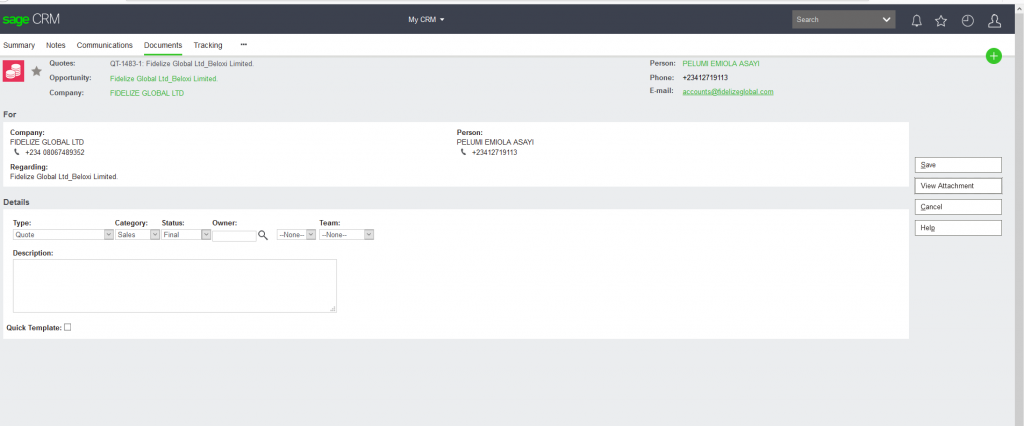
24. Once print quote is selected, then click on view attachment.
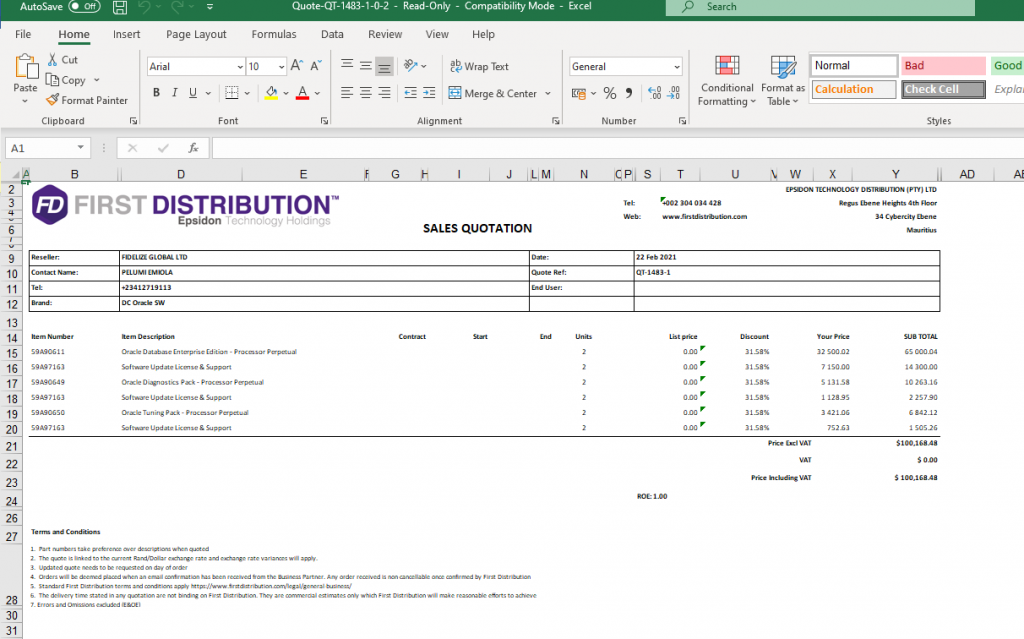
25. Quote is done