
Step 1: Create new Opportunity by clicking on New Opp

Step 2: Check if Company is loaded and has a contact loaded as well.
Add partner, then contact person and complete the description box with a short description of the opportunity. Territory stays on Default. Click save and the opportunity will be created created.
Ensure the territory updated correctly and on Default (should not say worldwide)

Step 3: Click on Quote.
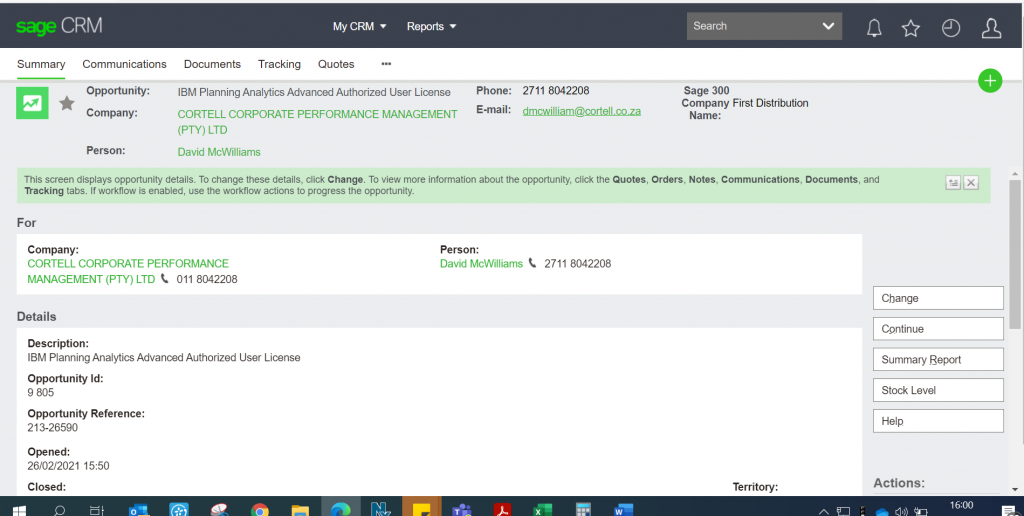
Step 4: the below screen will pop up then click on new.

Step 4:
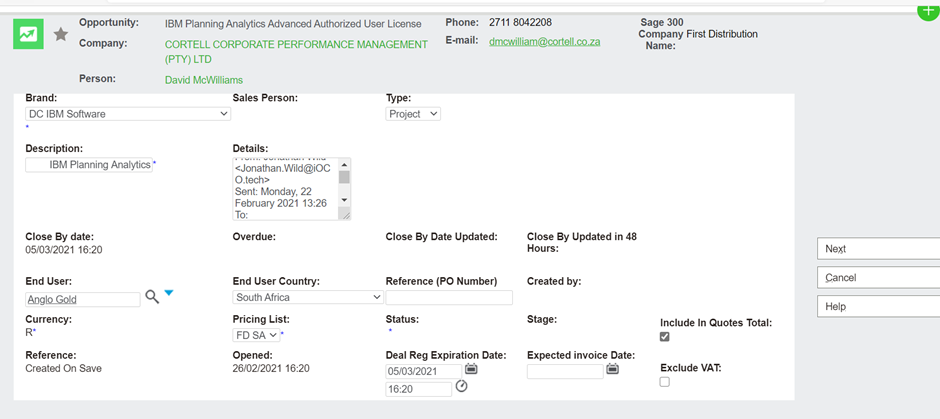
- Brand: as DC IBM SW/or CS IBM Security for Security deals
- Description: a brief description of the solution you are quoting on
- End User: Search and choose correct end user (if not available use TBC (To Be Confirmed)
- End User Country: Select South Africa
- Type: Runrate, Project or Tender
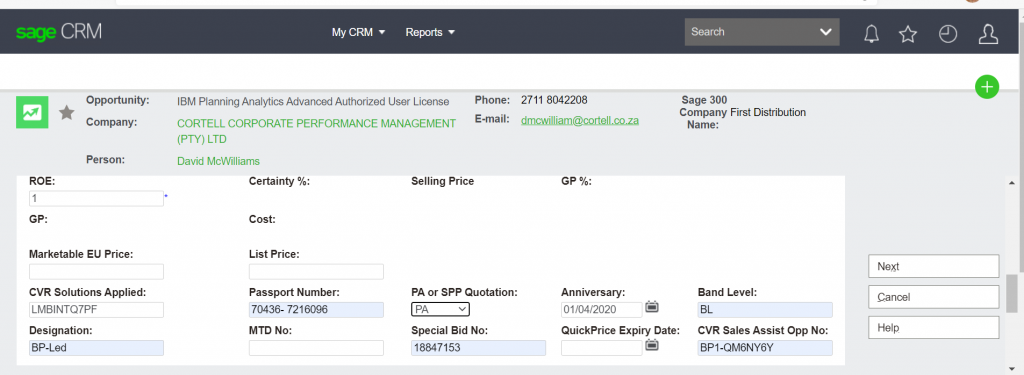
- ROE: Always 1 as IBM we only quote in ZAR
- Put in CVR Solution ID if applicable, if not type N/A
- Put in the Passport Advantage agreement number as they appear on PA.
- Use dropdown to select if its PA or SPP customer
- Put in the annivesary date as it appears on PA or the IBM bid/quote issued.
- Put in Band Level as it appears on PA or IBM bid/quote.
- Put in designation as it appears on PA or IBM bid/quote.
- Put in the Quickpricer Expiry date if the quote was done via quickpricer.
- Add the CVR/MYSA opp number if th customer had the opp deal Reg’d on MYSA.
- Then click next.
Step 5:
- Once you have clicked on Next, the below page will appear.

- Click New line item.
- Create your line item/s, select New Line item
- Search for the Part required.
- Use the % key in front of the Part Number.
- Because the Pricebook is not linked on CRM yest we need to enter the price manually.
- Enter your price as in appears on the pricebook or bid on the USD custom field.
- Put in your Quantities.
- Enter the margin/discounts that need to be applied on the Discount on top of client field.
- State if it is a New/SaaS or Renewal contract under contract filed.
- Put in Start and End date as per the IBM bid/quote.
- Select which product group it falls under.
- Select Yes or No if the BP is authorised to resell IBM SW.
- Enter the solution ID the BP has been approved for on MYSA.
- Tick exclude system margin as the margins are not on the system we enter them manually.

- Click save to proceed with quote calculation or save & new if multiple line items are required, repeat Step 5 for multiple line items on quote.
Step 6:
- Once quote is correctly populated, select Calculate Quote Totals to calculate your margin and Total amount, as well as the GP and Margin %
- Double check that the above has totalled correctly.
- Click Accept if in good order.


- Add tracking note and click save

- Once completed, it will take you back to the Quote page and the quote will go into the New Quote stage.
- Put into the Identified stage and add a tracking note

- Once completed, it will take you back to the Quote page and the quote will go into the Identified stage.
- In order to generate the quote to client and/or to sales, click on the print quote button.
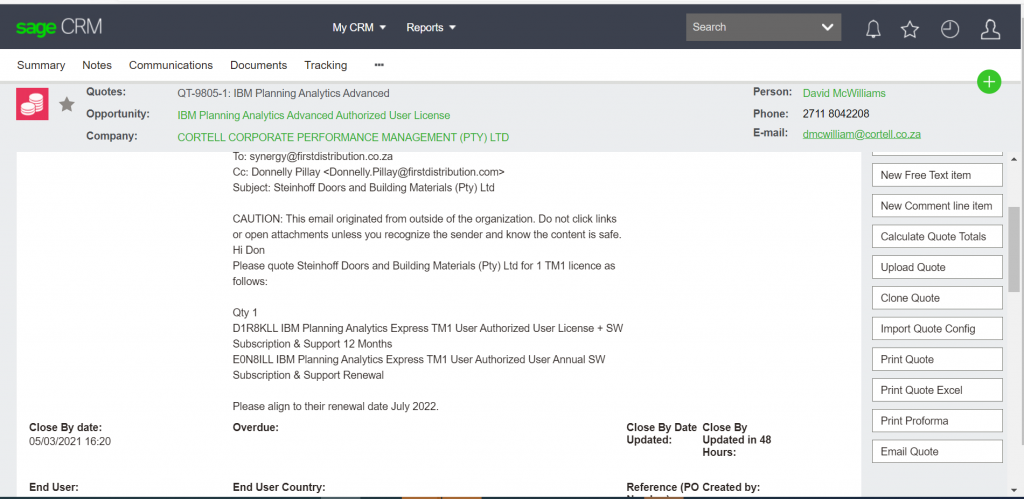
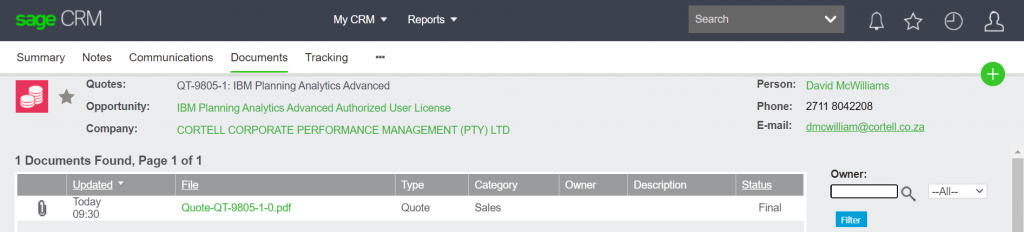
- Click on the Quote link to open quote.
- Check if everything has pulled correctly and the totals are correct.
- Then save to your appropriate folder and send to sales/client.