
NB From step 1 to 3 process is the same
Start from step 4 and continue up to step 6
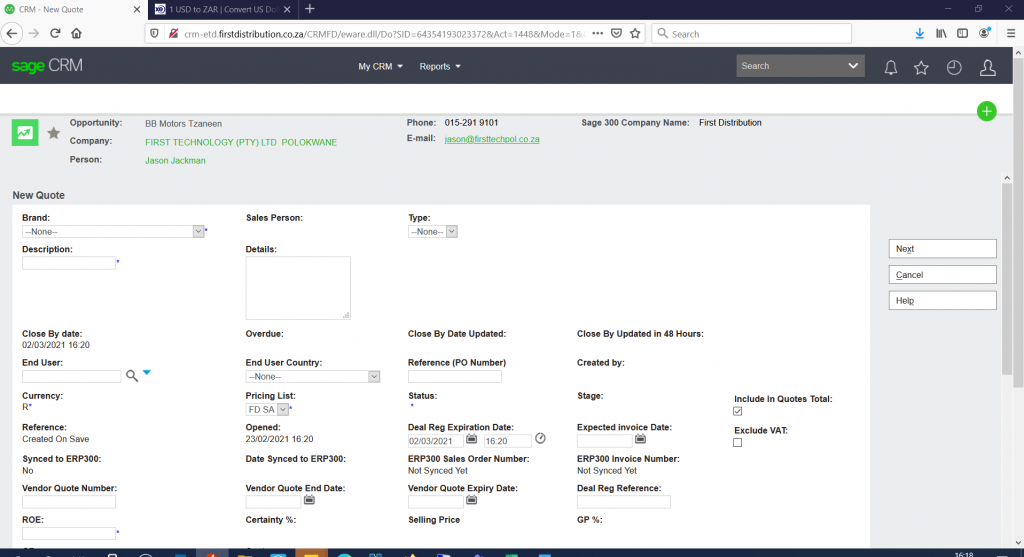
1. Click on Brand
2. Click on Descriptiong. use End username
3. Click on Type on this scenario you can choose Tender
4. Enter Details, you can copy from email request
5. Enter EndUser Details e. name by using % to search. If enduser details not pulling, send request to code create department on enduser creation form to create end user
6. Enter ROE if in Rands and if in Dollars put 1
7. Enter deal reg Expiry date
8. Enter Vendor Quote number
9. Enter Vendor Quote End Date
10. Enter Vendor Quote Expiry Date
11. Enter Deal reg Reference
12. Click Next and go to next page, see arrows for info that needs to be included on step 4 and step 6
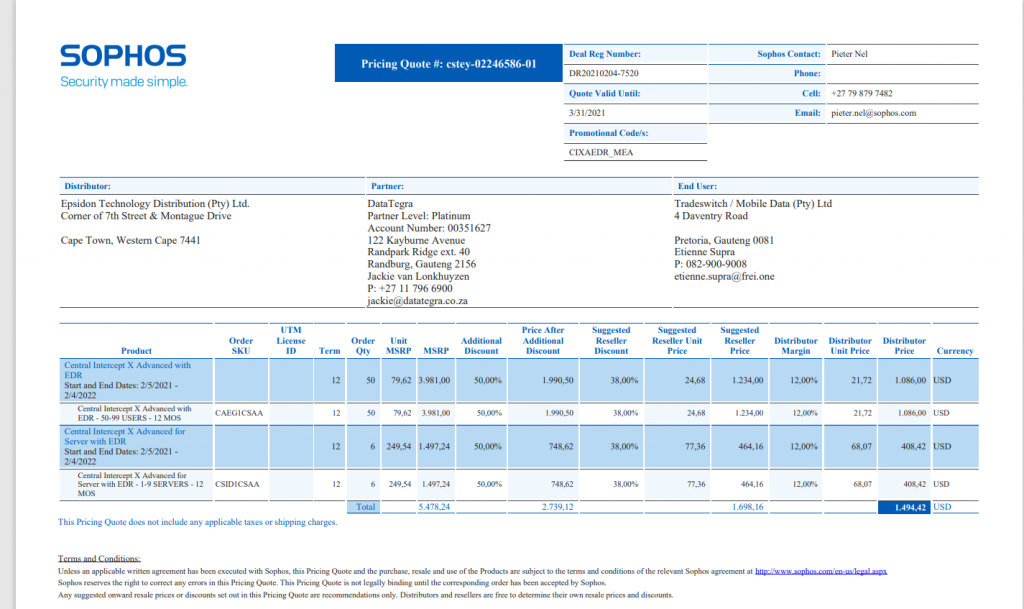
Vendor quote sample
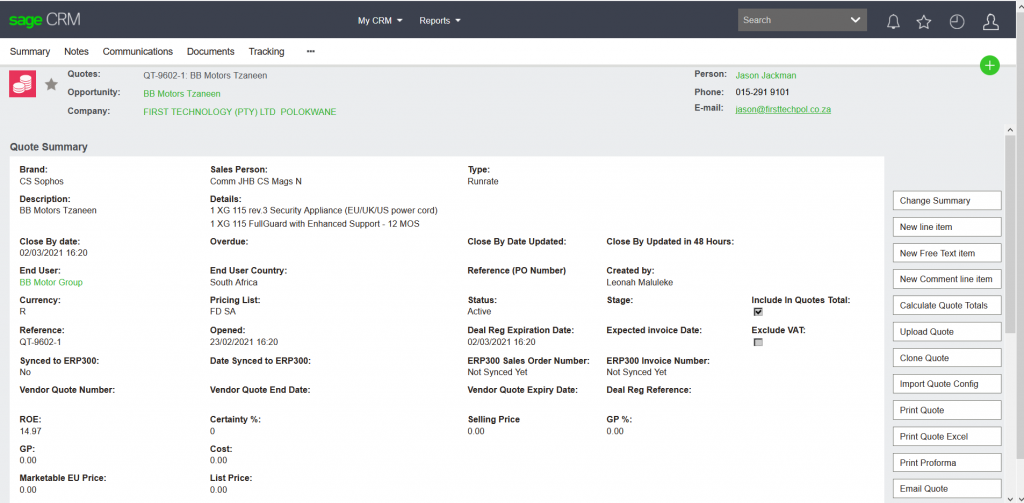
13. Click on New line Item It will take you to new page
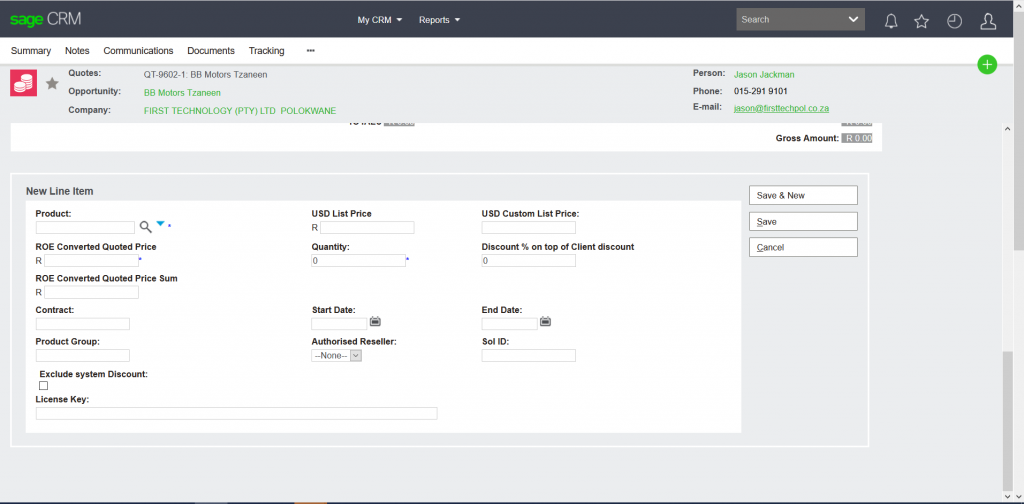
14. Click on product by using % to search for product sku it will pull on USD List price and also pull ROE Combined Quoted Price
15. Vendor quotes usually have extra discount on
16. Take the USD list Price e.g 540 minus the additional discount from vendor quote (50%) get the total( first delete the 540 from the USD list price, as well as Combined Quoted Price and, ROE Combined Quoted Price Sum) make it zero take the total you got after minus the additional discount and put it on USD Custom List price
17. Insert Quantity it will pull Combined Quoted Price and ROE Combined Quoted Price Sum
18. Tick Exclude System Discount box
19. Put on your partner’s discount % on top of Client Discount
20. Save it will take you to the next page or if you need to add more items click Save and New a new window will appear to add more items
21. From here you can continue from Step 7 until step 9