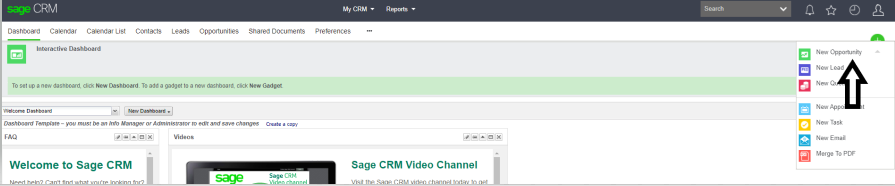
Step 1: Create new Opportunity

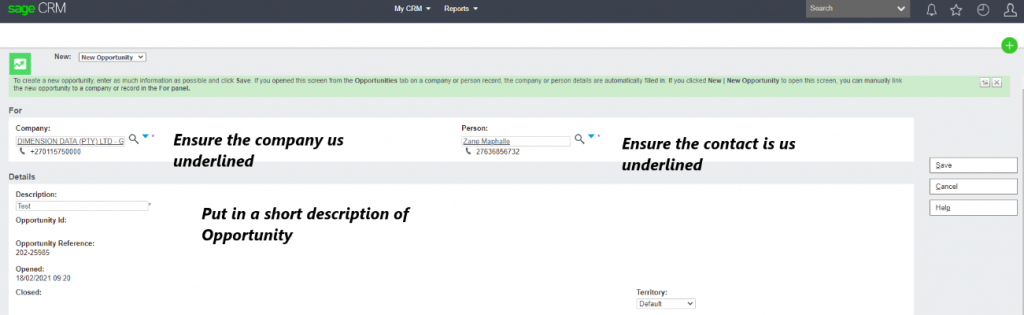
Step 2: Check if partner is onboarded and has a contact loaded.
Add partner then contact person and Complete the description box with a short description of the opportunity. Territory stays on Default. Once save has been clicked an opportunity has been created. Ensure the territory updated correctly (should not say worldwide)
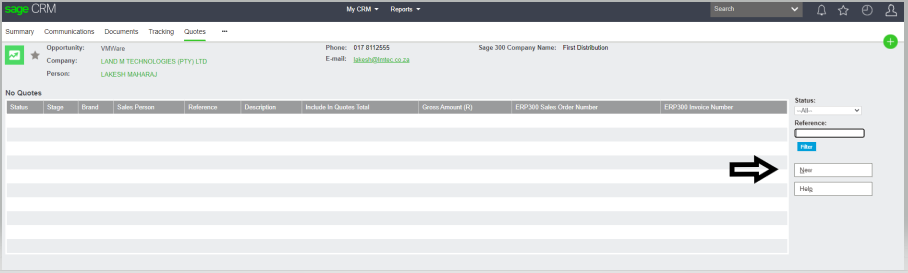
Step 3: Click on new quote.
Step 4:
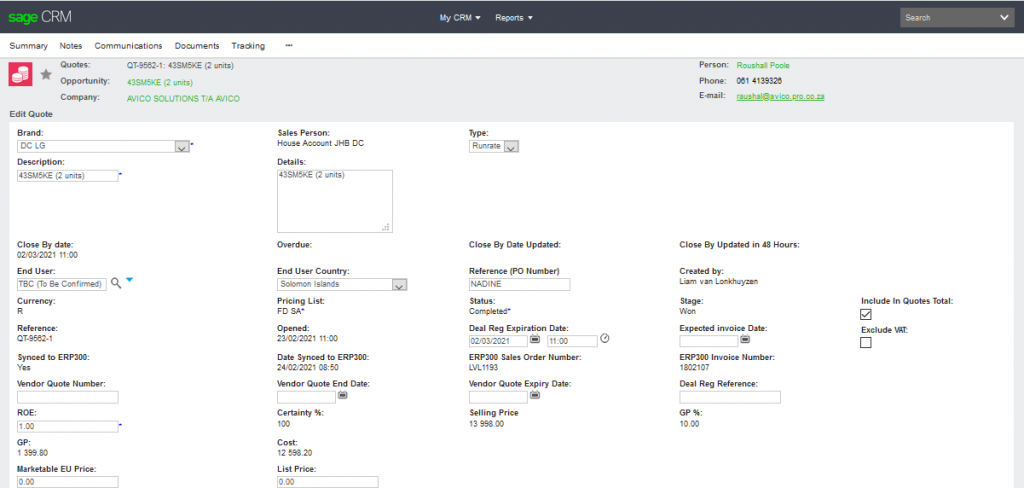
- Brand: as DC LG
- Description: what you are quoting
- End User: Search and choose correct end user (if not available use TBC (To Be Confirmed)
- ROE: 1
- End User Country: Select correct country.
- Type: If not a known tender choose Project
- Excluding Vat: Only tick the box when partner is not in SA.
- Click save.
Step 6:
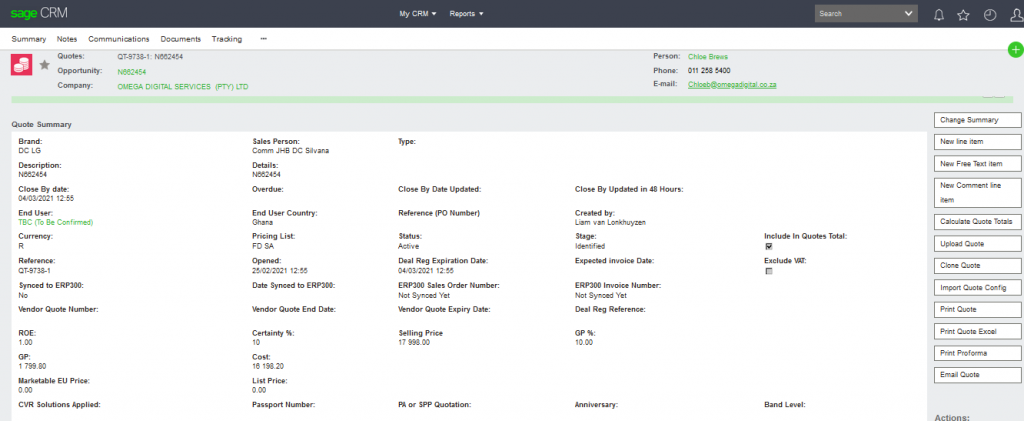
- Click on New Line Item
Step 7
Once Selected the below Page will appear at the bottom.
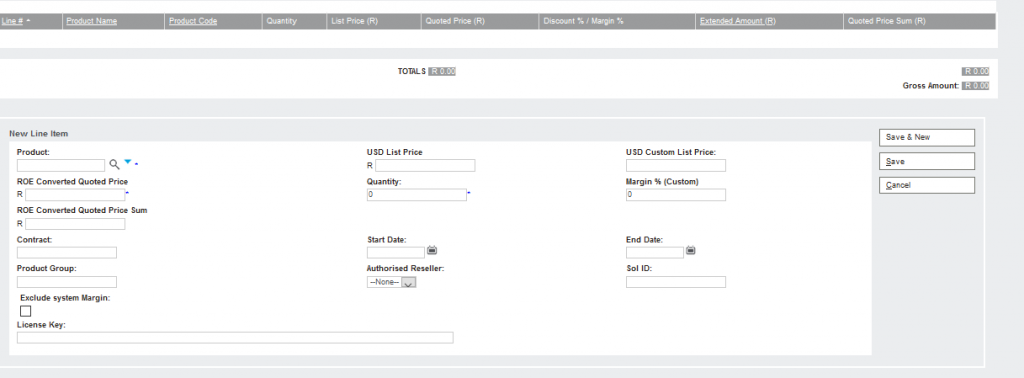
You need to Search for the SKU you will be selecting.
For LG the prefix is 32 so when you search for the SKU start off with 32 and then the SKU right after it with no spaces on you click search if there is more than 1 SKU the below will appear and you select the one that will be appropriate for the situation/customer
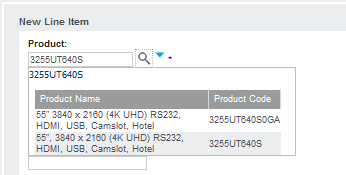
Once you have selected the description will show in Product
There will be 2 scenarios.
1st scenario system margin
- Our cost price shown (should automatically be filled in)
- Type in your quantity
- Once the Quantity is filled in under ROE Converted Quoted Price Sum the Total will be worked out to the quantity that was Typed
- You will have 2 Options Save and Save & New ( Save & New is when you are adding another Line option Which you follow the same Pro Secure above
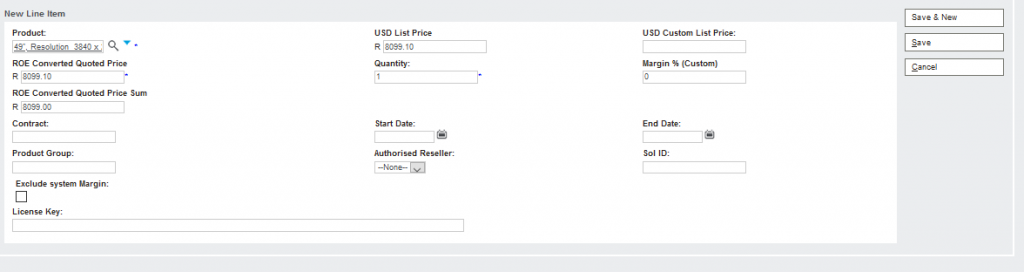
2nd Scenario Custom Margin
- Zero out List Price
- Work out our cost from the selling and fill in Custom List Price
- Type in the Margin that you need to use.
- Type in your quantity
- Click in the Tick Box to Exclude System Margin
- Once the Quantity is filled in under ROE Converted Quoted Price Sum the Total will be worked out to the quantity that was Typed
- You will have 2 Options Save and Save & New (Save & New is when you are adding another Line option Which you follow the same Pro Secure above
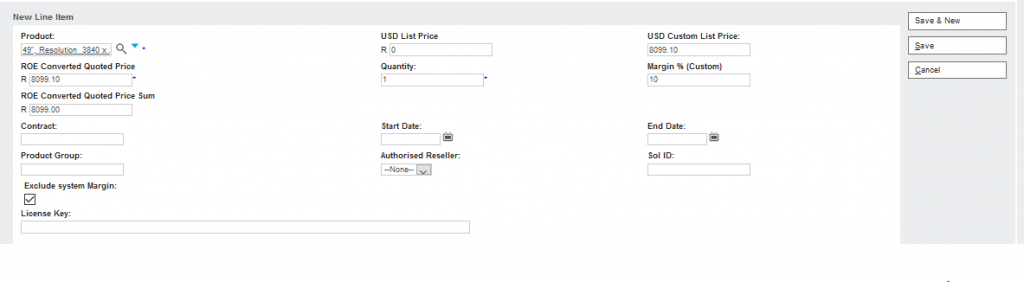
Step 8:
- Click on calculate quote totals.
- Once calculated double check that it calculated correctly.
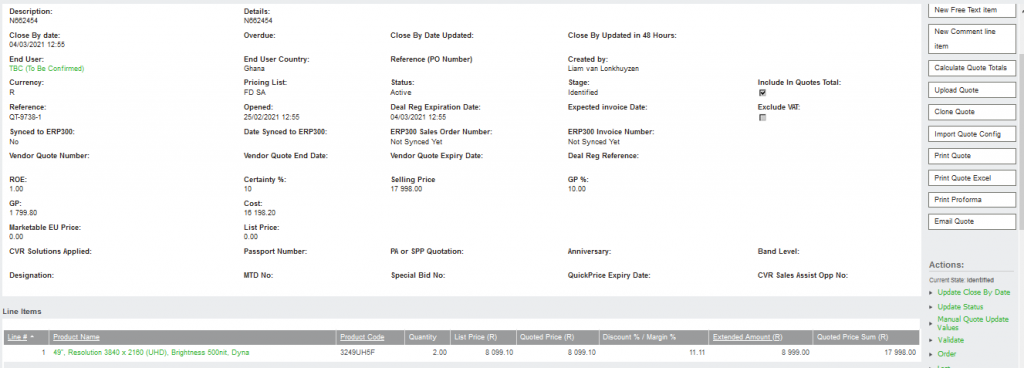
Step 9:
- Once checked click on accept.
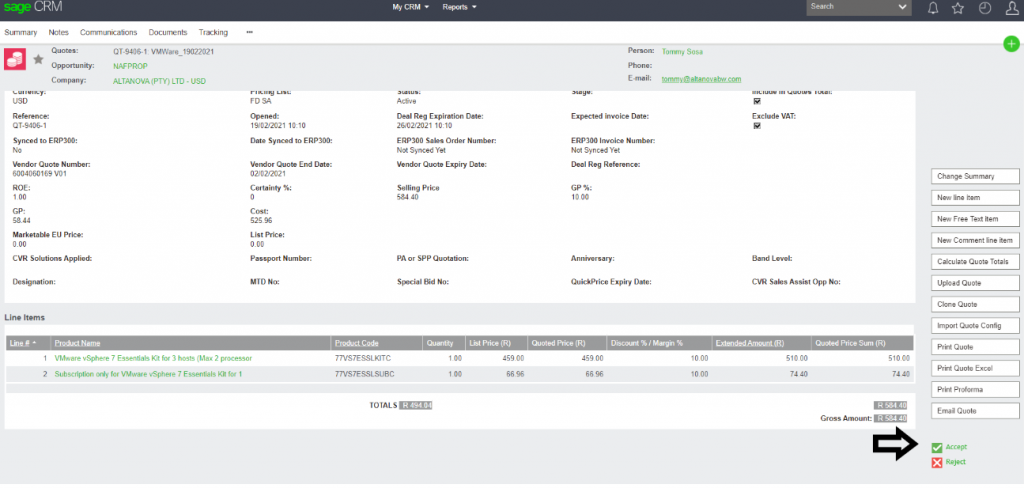
Put in tracking notes, click save
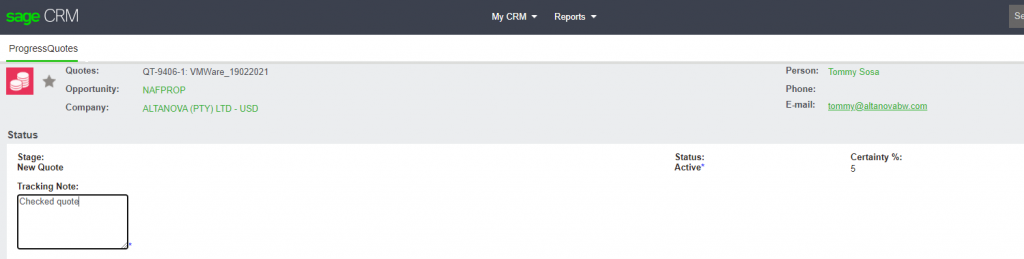
Step 10:
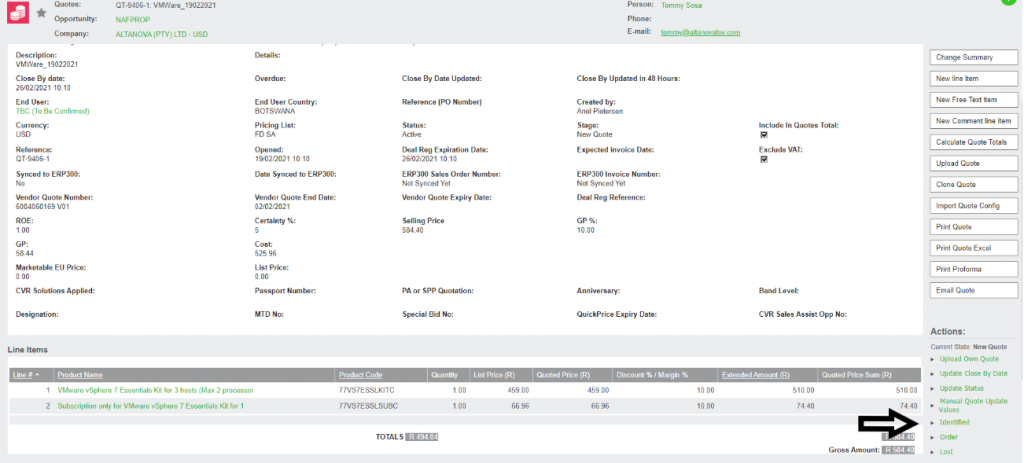
- Click on Identified
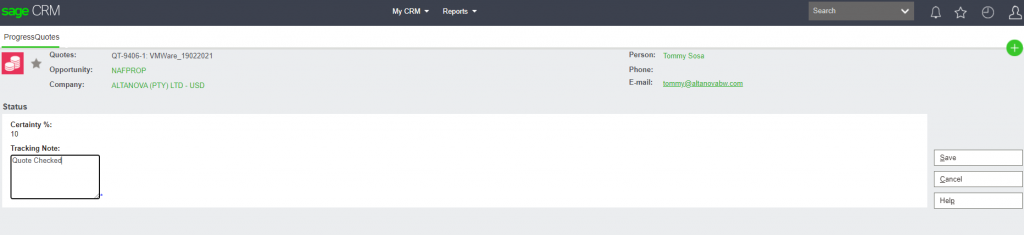
- It is important to put on Identified or the salesperson will not see the opportunity.
Put in tacking notes, click save.
Step 11:
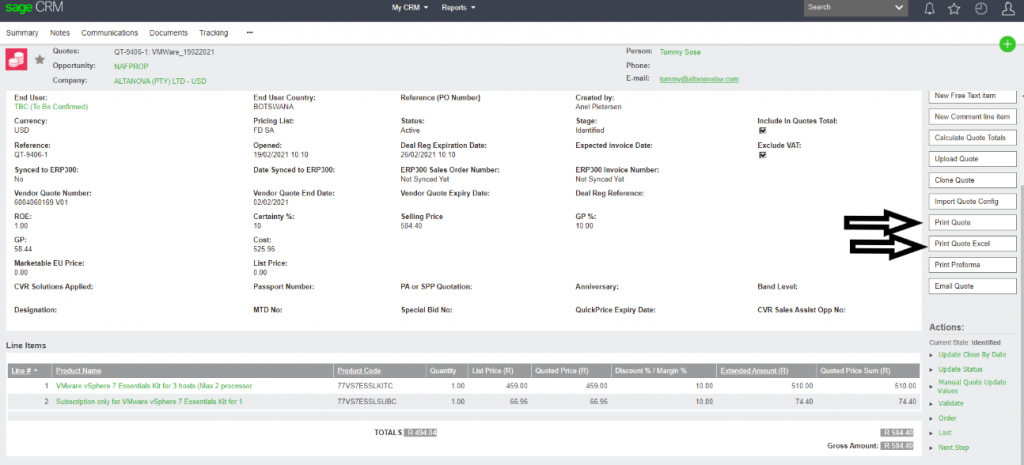
Print quote
- Can be printed in PDF (Print quote) Or Excel (Print Quote Excel)
- Save file in folder and send to partner / salesperson.