
HOW TO QUOTE MILESTONE
AFTER AN OPPORTUNITY HAS BEEN CREATED
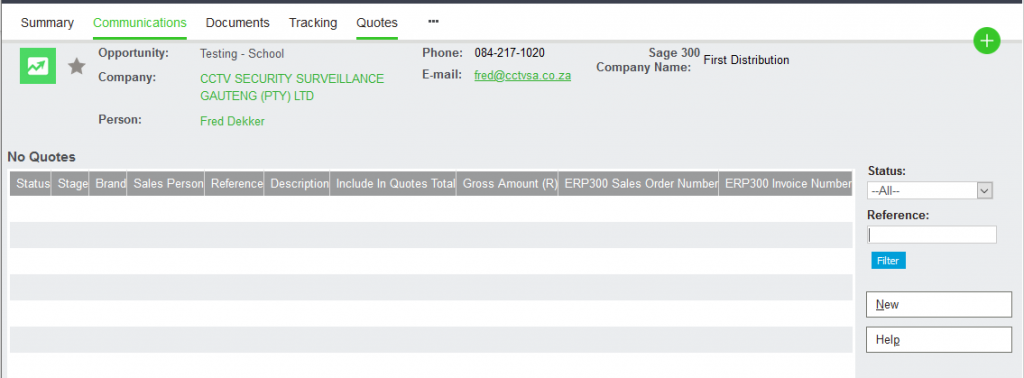
Click on the Quotes Tab. A new window will load. Click on the New Button.
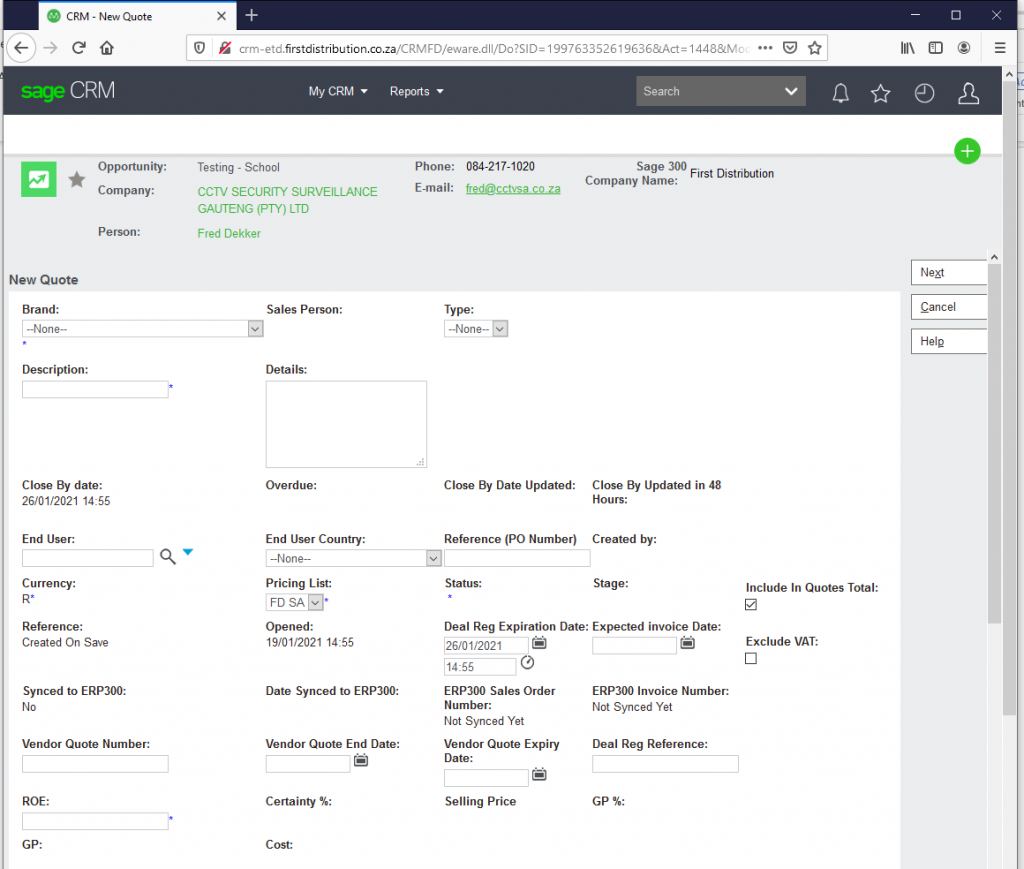
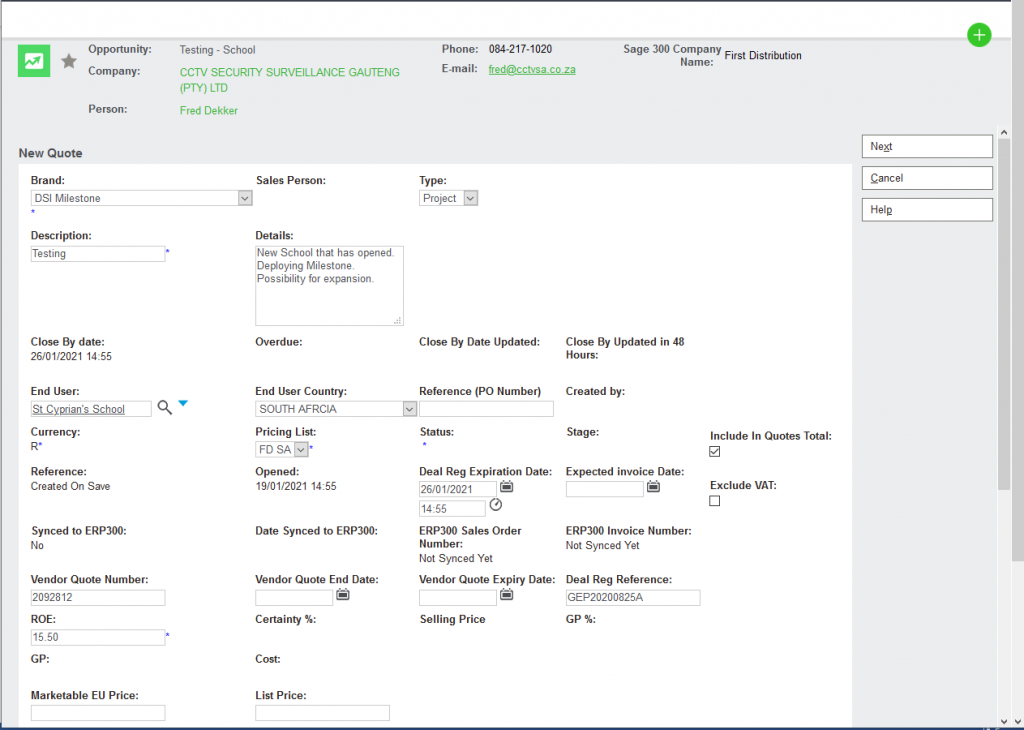
Fill out the following details:
- Click on the dropdown menu for Brand and select relevant Brand
- Type
- Description
- Give a short description of the details of Project/Tender in the Details block.
- Fill out the End User. NB – The End User needs to be created on the system if not already. This can be done by sending it to the Code Creation Team to upload. If the End User has not been loaded at the time of quotation, select TBC (To be confirmed). This will allow you to proceed, however, it remains your responsibility update once the code has been loaded onto the system.
- End User Country
- Vendor Quote Number if applicable
- ROE if applicable – ROE is applicable if the vendor quotes us in a different currency, for example, Milestone, iSentry, etc. If our Vendor gives us pricing in ZAR – then you need to apply “1” in the ROE section)
- Deal Reg Reference if applicable
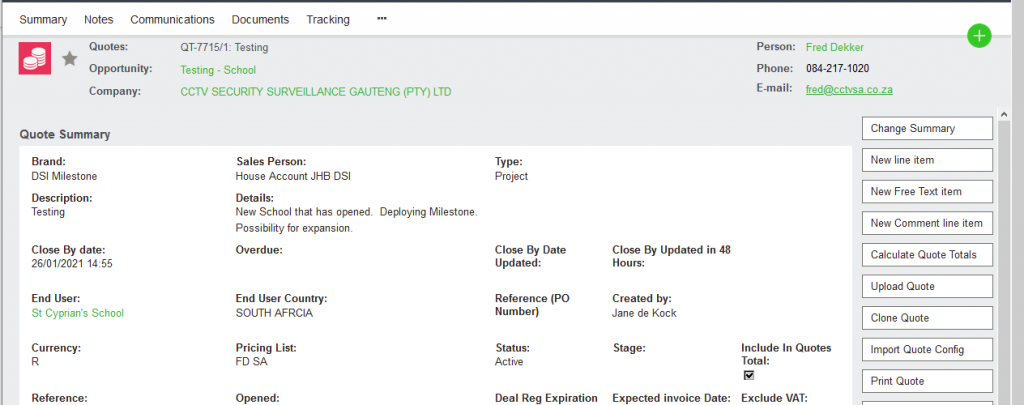
Once all information has been put in, click on the Next Button
Click on the New Line-Item Button
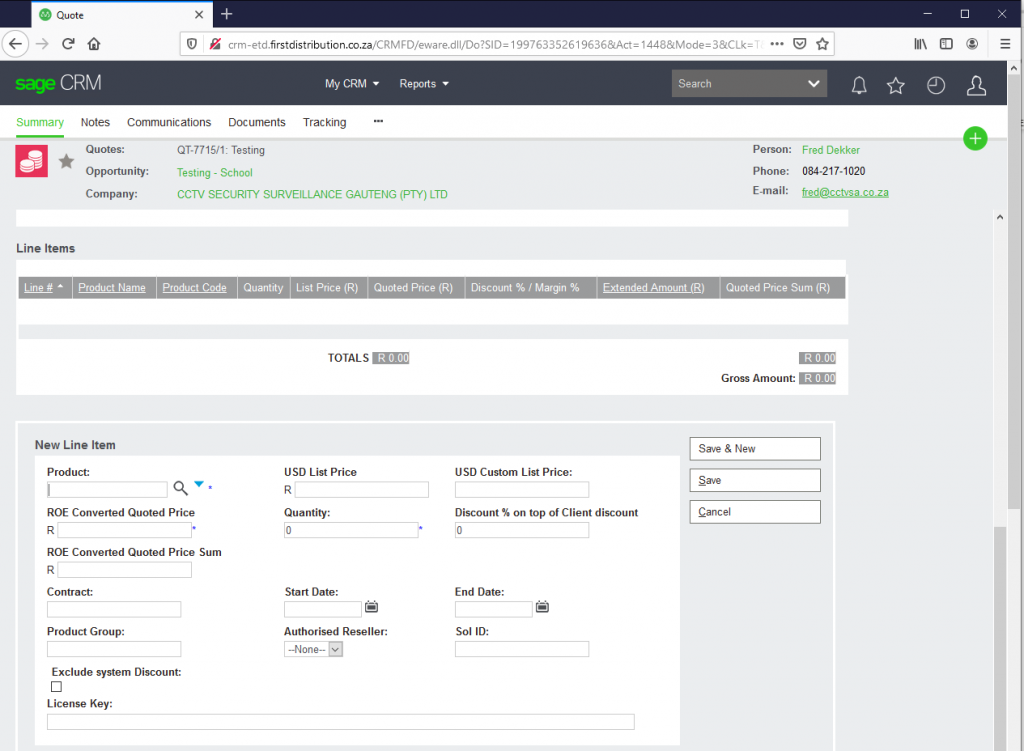
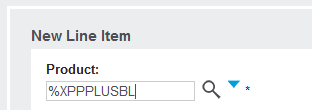
To search a product code, you need to enter %before the product code. Remove spaces and or other characters. Click on the Search icon.
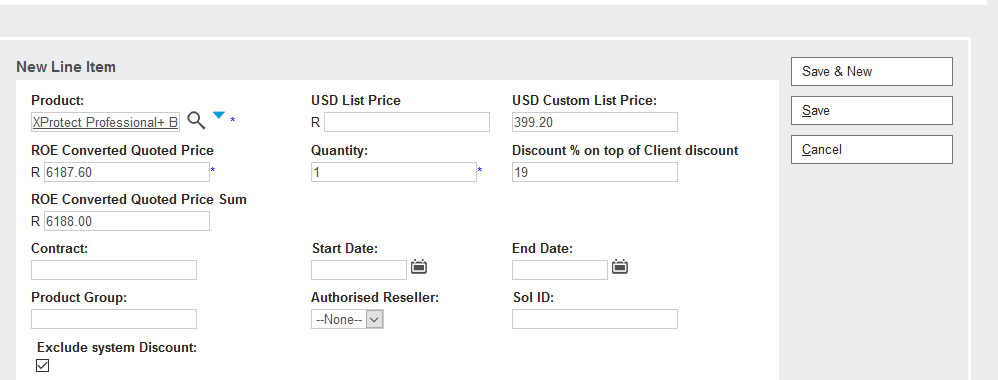
The USD List Price is AUTOMATICALLY entered. This is the List Price of the specific brand. (Either List Less or Cost Price depending on the brand) The ROE converted quoted price is automatically worked out. This is worked out based on the ROE you entered previously.
If you have Project discount for milestone, you will need to clear the USD List Price, Take the MSRP as per your Milestone quote, and minus the Partner discount. You will then manually enter the USD Custom List Price. Add the Project discount that you received from Milestone to the Discount % on top on Client discount. Click on the Exclude system Discount block as indicated below. If there is no Project discount, leave the MSRP as is.
Click on the Save & New button if you wish to add more line items or click the Save button once done. Once done and you have clicked Saved – the next page will load. To see the totals, you would need to click the Calculate Quote Totals button. After Quote totals have been updated, click the Accept button that appears on the right-hand side of the screen.
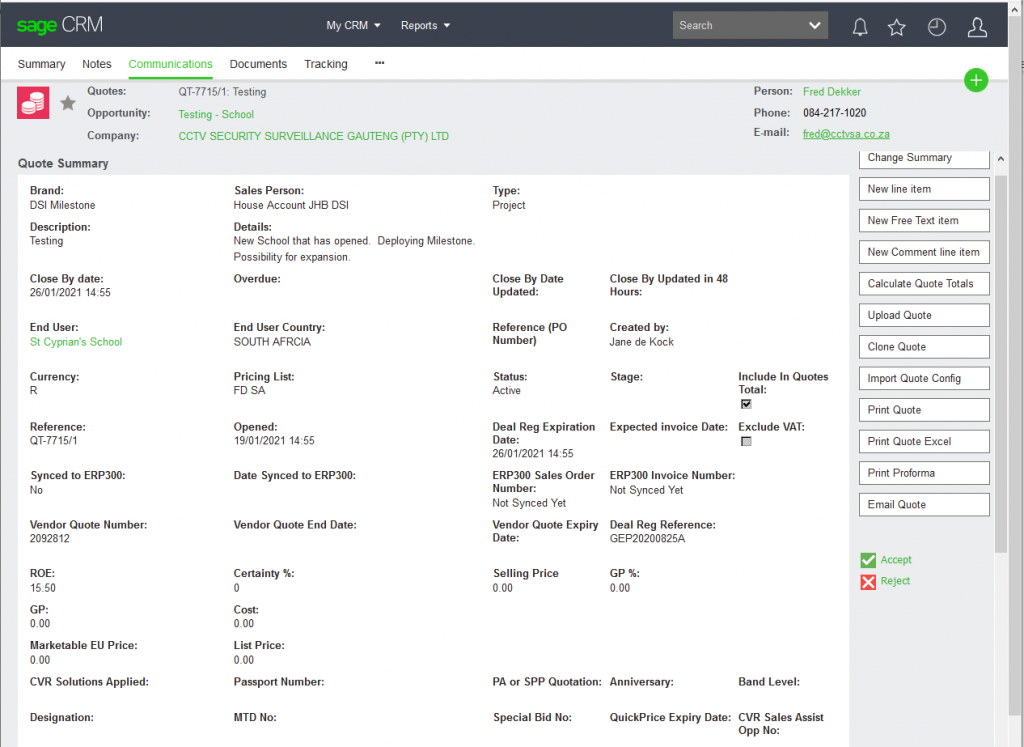
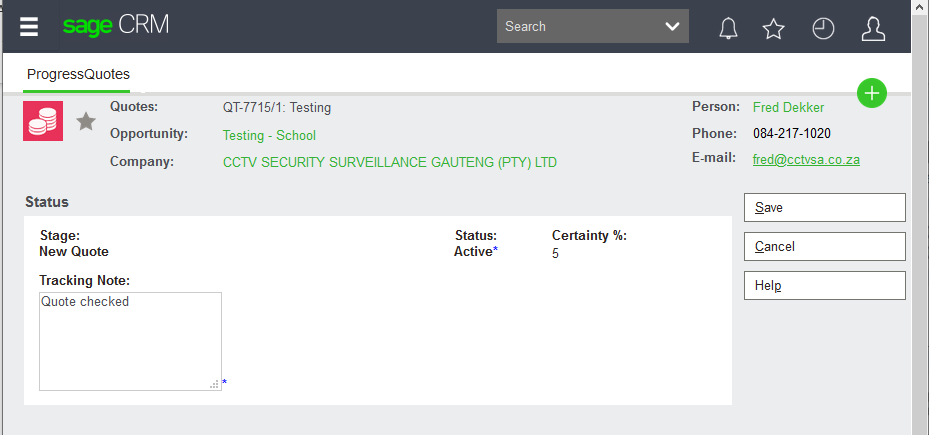
The Below page will load, and you will need to put in a tracking Note. Click on the Save Button.
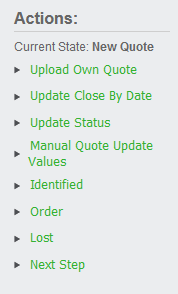
On the right-hand side there is a list of actions to choose from. Click on the Manual Quote Update Values
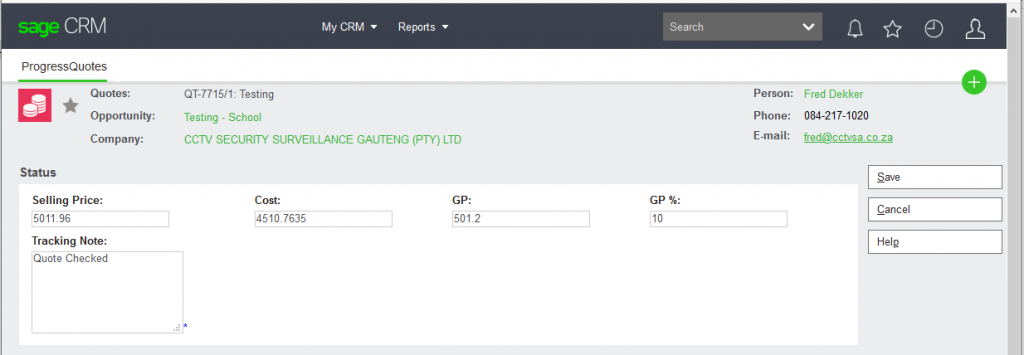
In this section you will have to manually enter the cost. Use the Unit Net Cost as per the Milestone quote and multiply it by the ROE that was used when opening the opportunity. Fill in the Cost only. The system will automatically enter the GP amount as well as the GP %. Click save once done.
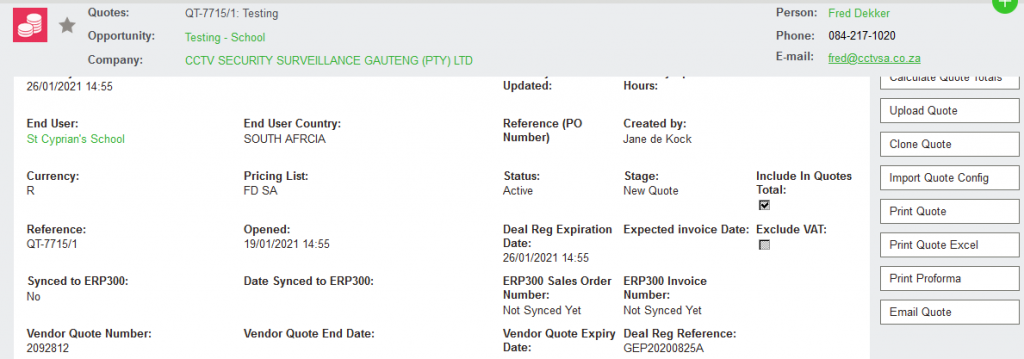
Select the Print Quote Button on the right. Another page will load, and you must click on the Paperclip icon to open. Save the document and send to your customer.
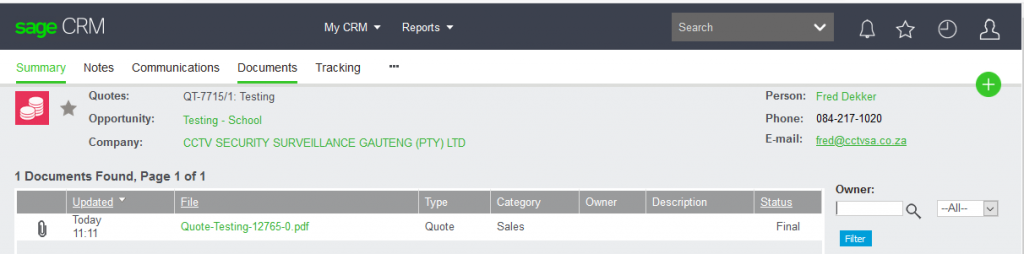
Example of the quote: Please makes sure that descriptions appear on the quote.
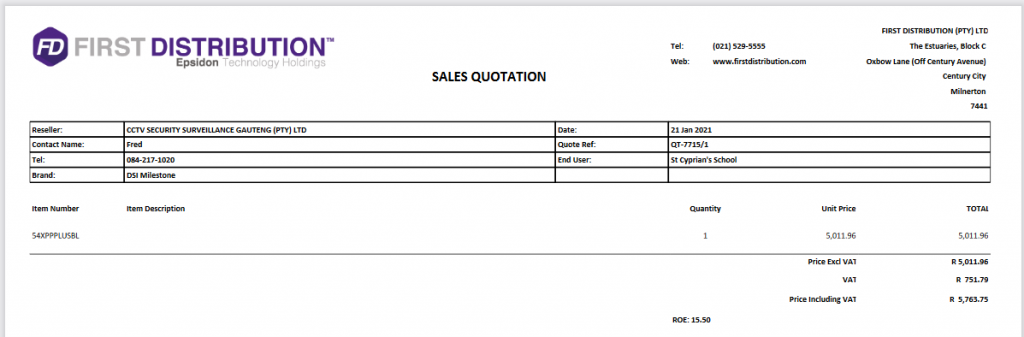
IMPORTANT NOTES:
- Make sure that you use the correct ROE
- Make sure that your manual calculations are correct and entered correctly on CRM
- Should a Description or code not exist on the system, a code needs to be created by the Code Creation Team.
- After the quote has been accepted it remains the responsibility of the Account Manager to Identify, Validate and Forecast. This should be done as and how you get feedback from your customer.
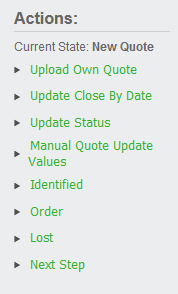
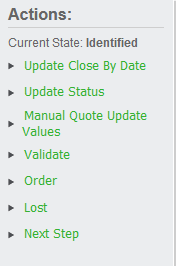
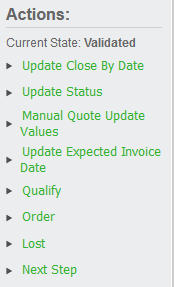
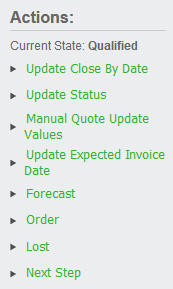
Identified

Validate

Qualify

Forecast
