
HOW TO QUOTE ISENTRY
AFTER AN OPPORTUNITY HAS BEEN CREATED
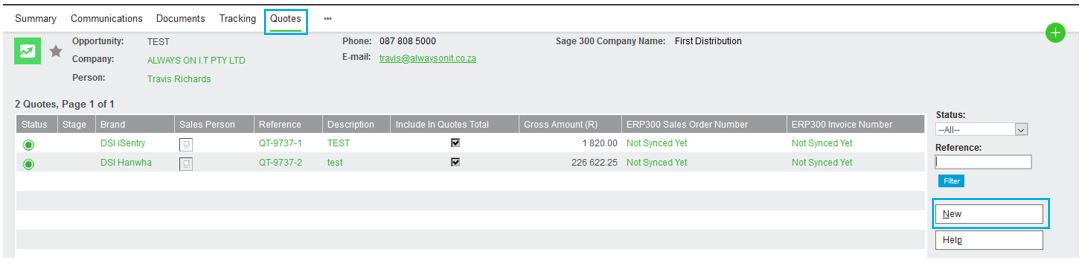
Select Quotes, and press on the New Button
Fill out the following details on the below page:
- Click on the dropdown menu for Brand and select relevant Brand
- Type
- Description
- Give a short description and fill out as much detail about the project in the details block.
- Fill out the End User. NB – The End User needs to be created on the system if not already. This can be done by sending it to the Code Creation Team to upload. If the End User has not been loaded at the time of quotation, select TBC (To be confirmed). This will allow you to proceed, however, it remains your responsibility update once the code has been loaded onto the system.
- End User Country
- Vendor Quote Number if applicable
- ROE will be R1 as we receive pricing in ZAR. For USD and Euro Prices, a manual calculation will be required.
- Deal Reg Reference if applicable
- Once all information has been entered, click on the Next Button on the right-hand side.

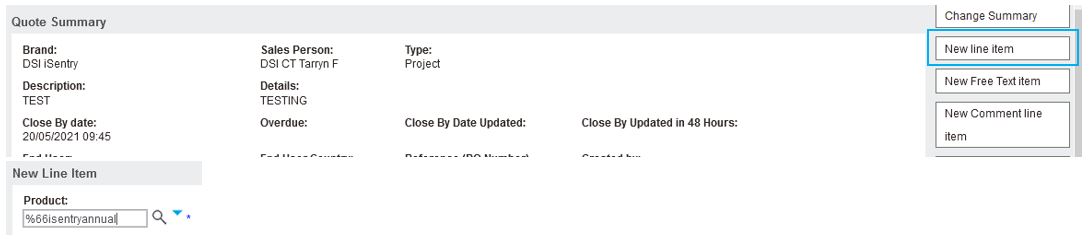
Click on the New Line Item Button to start entering your product codes.
iSentry SKU’s
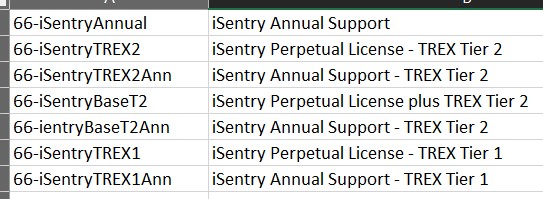
Use a % sign in front of your product code. Make sure to remove all spaces and or dashes in between. If you cannot find the code, try using the relevant prefix code. Click on the Search icon. Should the code still not be found, it may mean that it is either a new part number and have not been captured on the system as yet. The code Creation team can assist with this.
Once the code has been found, the description will be underlined. The USD List Price block will NOT populate automatically. Clear the USD List Price Block and enter the Cost in USD Custom List Price. Enter the quantity required. The Converted Quote Price will be calculated automatically in accordance with the ROE and qty provided by you in the Summary. The Margin is added automatically. If you wish to use your own margin, then you need to put it in the Margin % Block and tick the Exclude System Margin Block. Click Save.


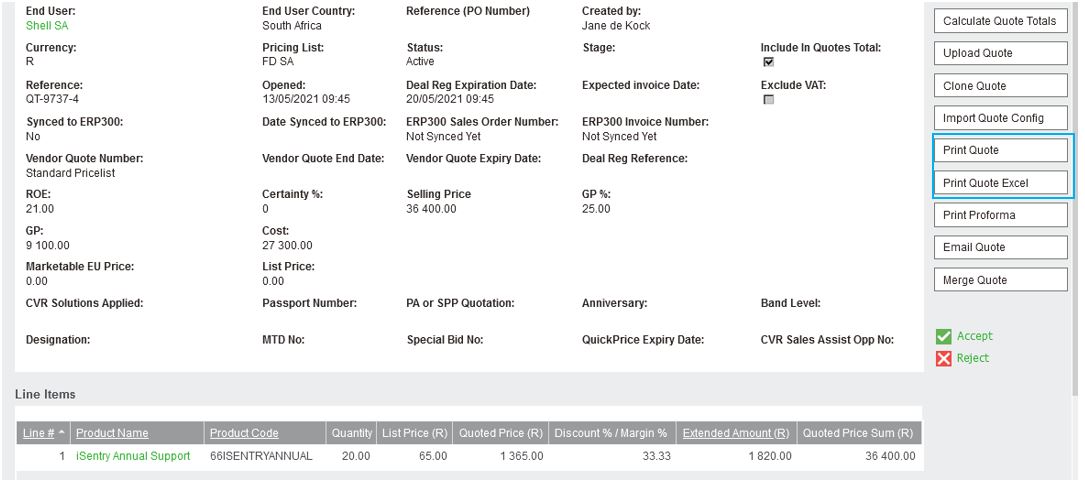
Click on the Calculate Quote Totals button. See the System automatically added the margin required to make 25% GP on this line item.
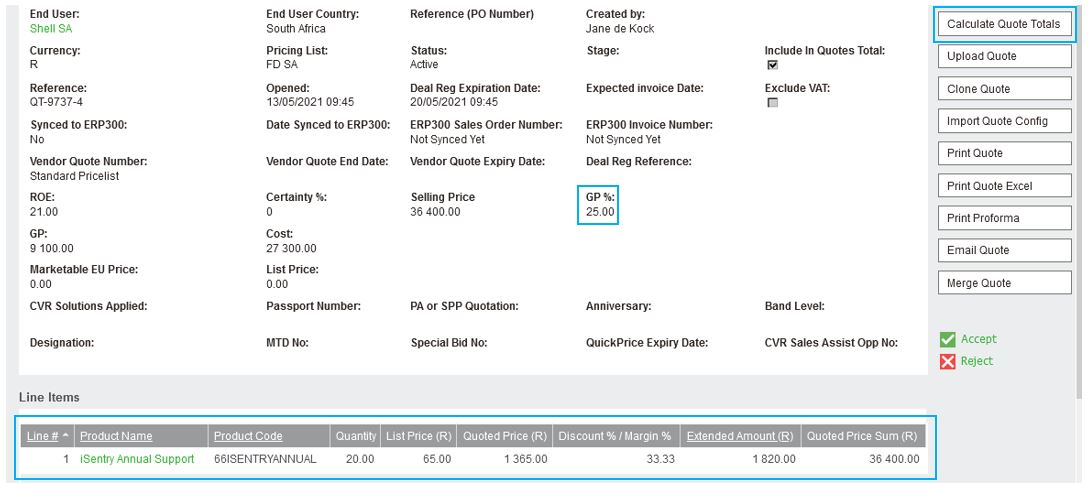
You can add different margins for each individual line, or the same for all lines. The Summary will have the Selling Price, Your GP%, GP Amount as well as your cost. Double check before you Accept your quote.
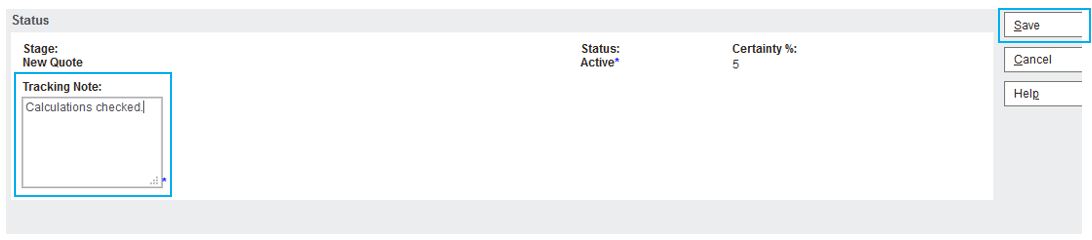
Put in your tracking note, and click on the Save Button
Select the Print Quote or Print Quote in Excel.
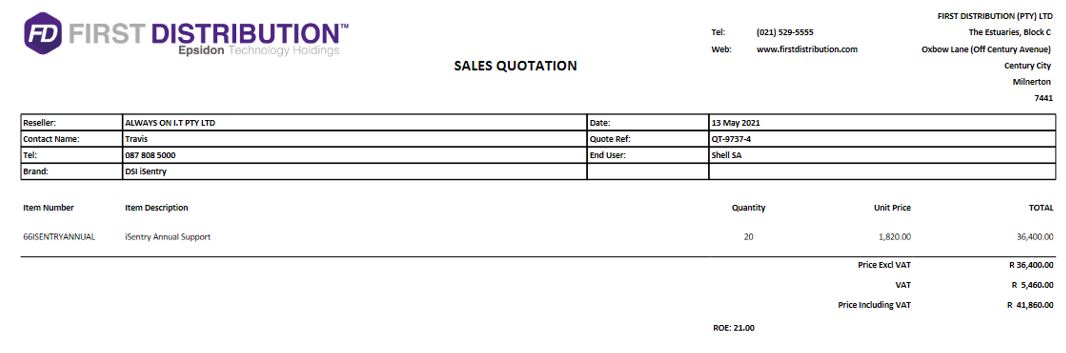
Click on the paper clip icon. The quote will pop up on a separate window in your network browser. You are now able to save this document to your local folder.

Example of the quotation
You will have to Identify, Validate, Qualify and Forecast your Deal. This can be found on the right-hand side of your screen under the Actions bar
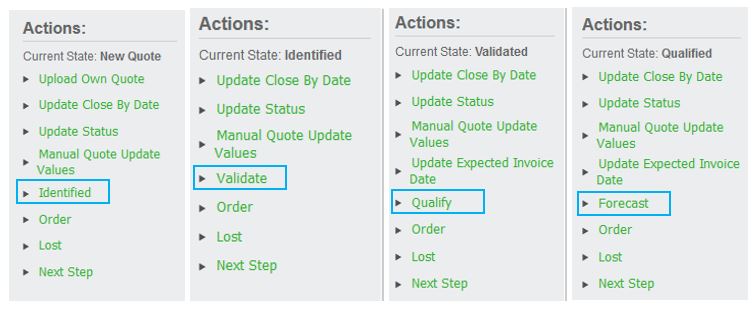
Identified

Validate

Qualify

Forecast
