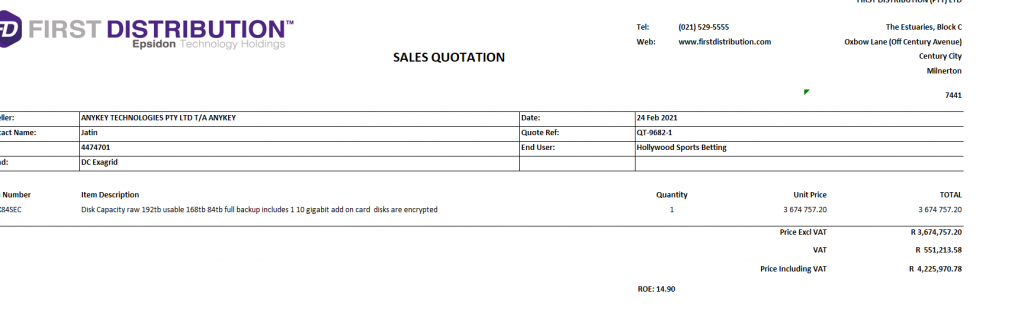
STEP 1: – How to create a new Opportunity.
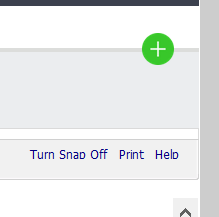
- On the Dashboard front page click on the “Plus Sign” circled in Green – a list of Tasks will appear.
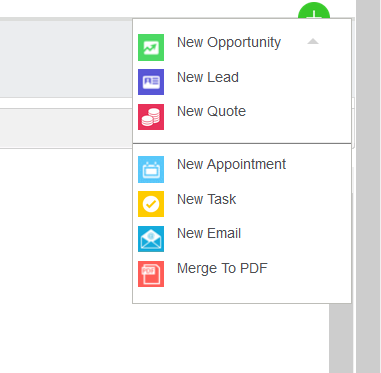
- Select New Opportunity
STEP 2: Enter in all Details.
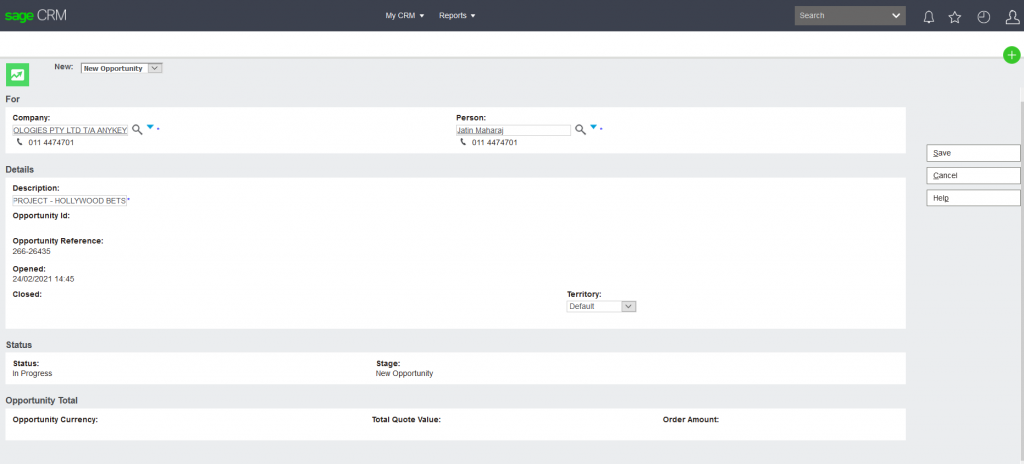
- The following page will open, search for the customer from the drop-down arrow – with the correct Accpac account number.
- Select customer and Contact name.
- Add in a Description for (example) a project name – Territory should remain as default – only to be changed if it appears as “worldwide”.
- Select Save Button – the opportunity has been created, which can be identified with an OPP ID

STEP 3: BEGIN THE QUOTING PROCESS
- Details are created, select Quote on the top to Create a Quote.
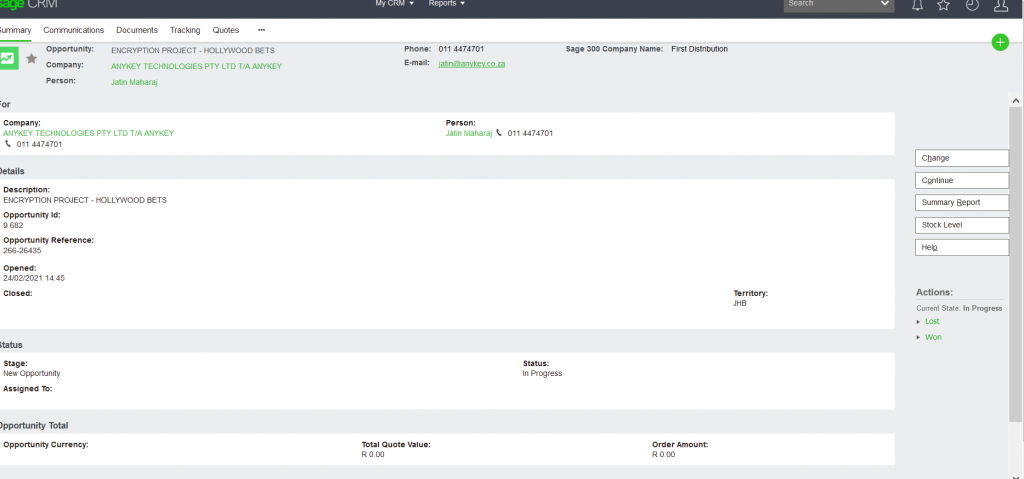
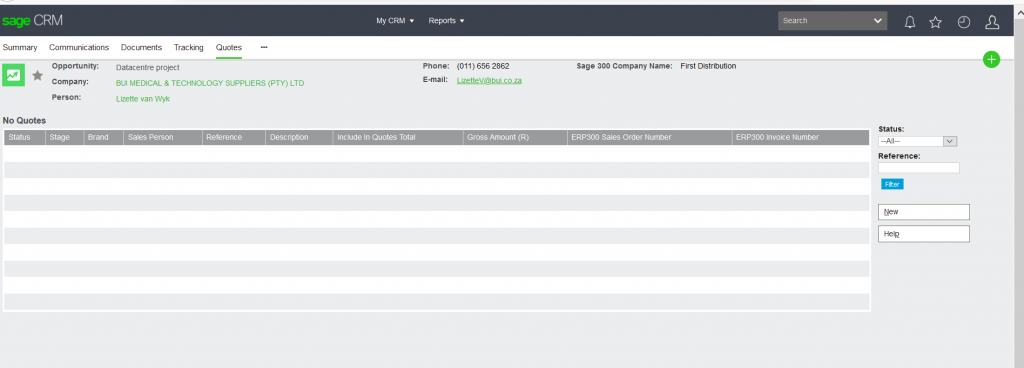
- The following page will appear, select new.
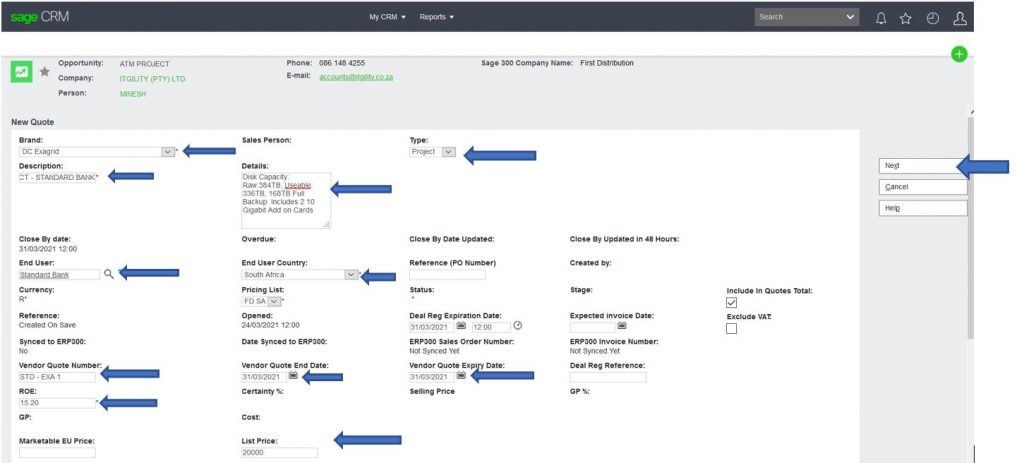
- The Following Fields should be completed.
| BRAND: | SELECT THE CORRECT BRAND FROM THE DROP-DOWN KEY |
| DESCRIPTION: | PROJECT NAME ETC |
| DETAILS: | SPECIFICATIONS ETC |
| TYPE: | FROM DROP DOWN SELECT THE CORRECT TYPE |
| END USER: | END USER DETAILS (NAME OF COMPANY) |
| VENDER QUOTE NUMBER: | CONFIGURATION NUMBER ETC |
| ROE | INSERT ROE AS VENDER QUOTE IS ALWAYS IN USD |
| LIST PRICE: | LIST PRICE FROM THE VENDOR CONFIGURATION |
| VENDOR QUOTE EXPIRY DATE: | EXPIRY DATE OF THE VENDOR CONFIGURATION |
| END USER COUNTRY: | SELECT THE COUNTRY THE END USER IS SITUATED IN |
- The Arrow will indicate the Various Fields – Select Next
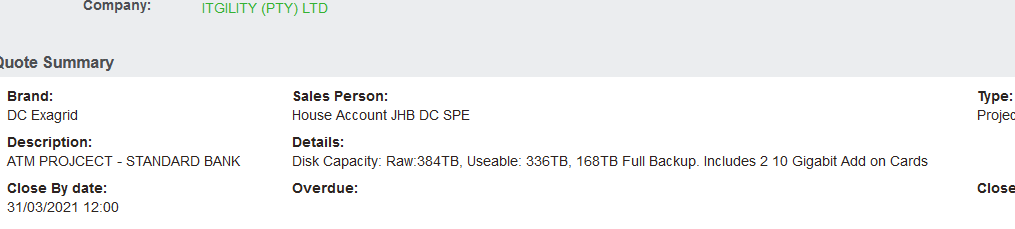
The quoting process can now begin.
- Allocation of correct salesperson needs to be checked.
- (if incorrect Salesperson needs to have allocated correctly)
- Select New line Item.
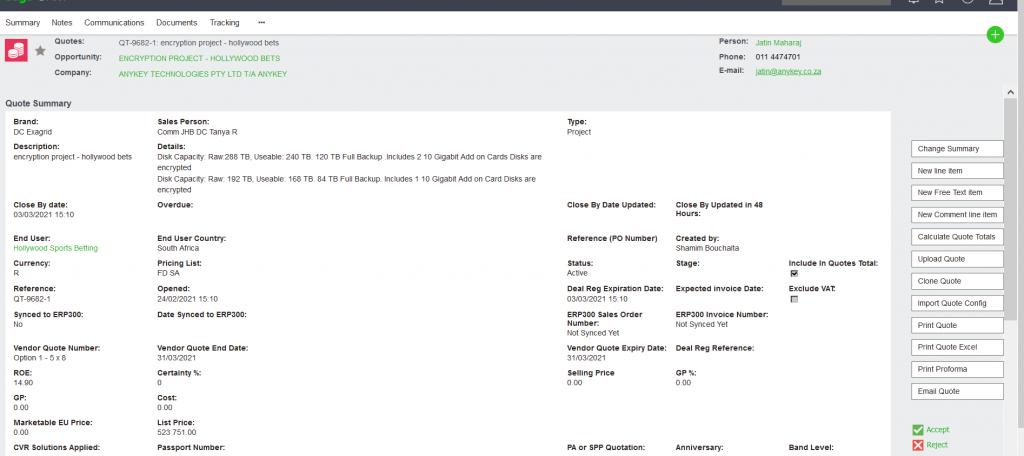
The following Page will open.
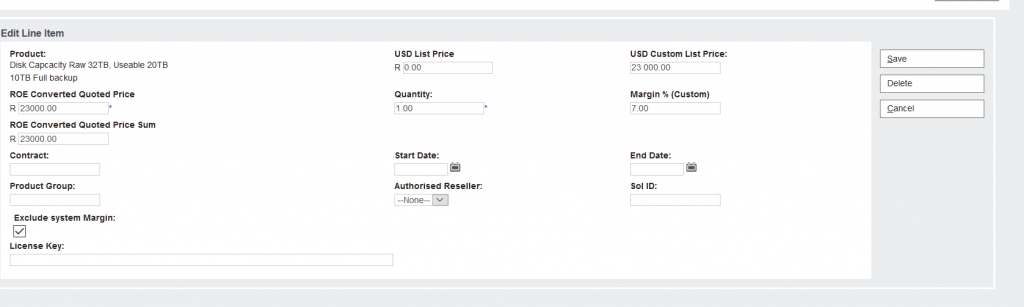
- Search Sku with % (Percentage sign)
- Tick off (Exclude System Margin)
- Insert Buy price under USD CUSTOM LIST PRICE
- ADD IN Quantity
- Add in Margin.
- Save or Save & New to create another line item.
- Calculate quote Totals (to ensure that margin reflects)
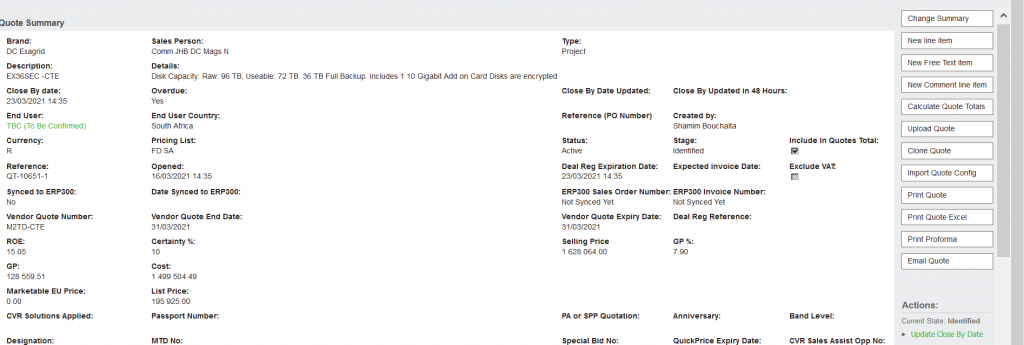
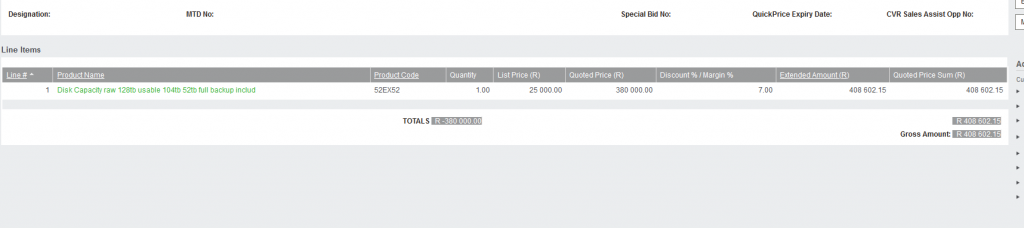
- Select Accept and add in a Tracking Note.
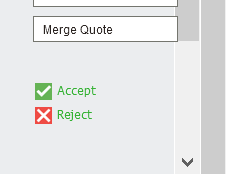

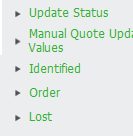
- Click on Identify. Enter in Identified in Tracking Note and click on Save.

STEP 4: PRINTING QUOTE PROCESS
- Excel Format or PDF
- Select Print Quote Excel

- Or PDF Format

- Click on Quote and View attachment
- Select the “OPEN WITH” function as this will open the quote so checks can be administered!

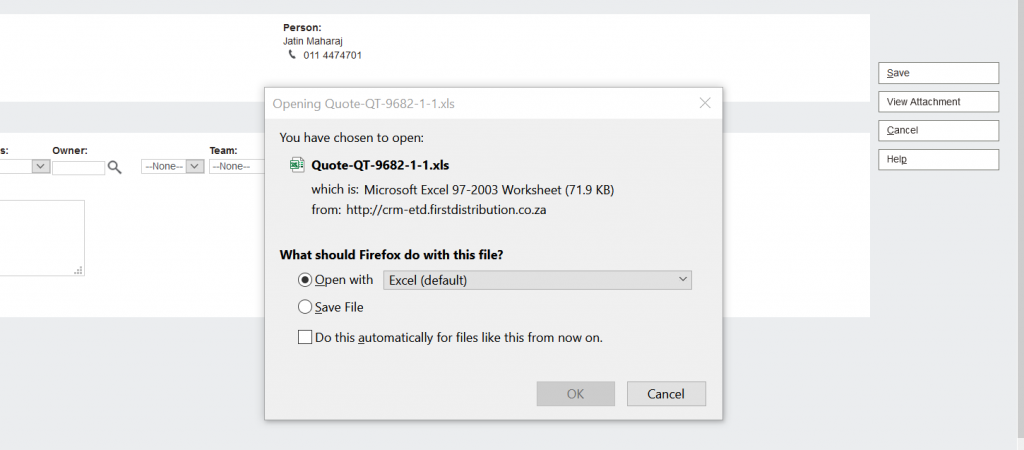
- The quote will now open and changes can be made if printed in Excel.