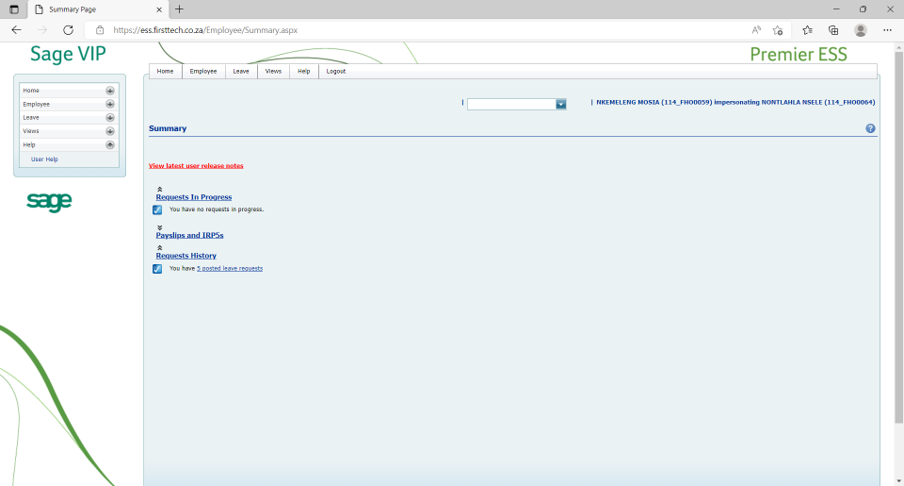
LOGIN
NB: Use the correct URL or ESS address.
Do not google the ESS address.
Check old ESS emails or email Nkemelengm@firsttech.co.za for assistance or reach out to your Human Resources Payroll Department.
Best to save the address on your PC.
LEAVE MANAGER / APPROVER – INBOX
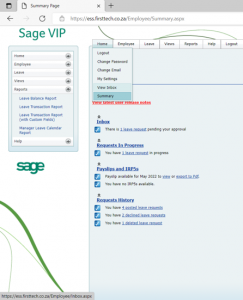
- On your home page, at the bottom, you will find “Requests History” and how many posted leave requests you have that must be approved.
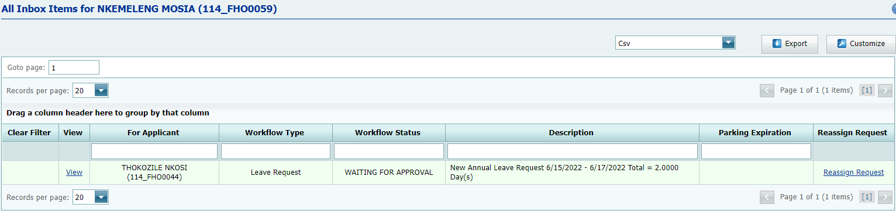
- All the transactions awaiting approval will be displayed.
- Click on “view”.
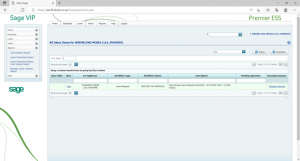
- The Leave balance and, if necessary, attachments can be found.
- Make sure to include notes if the approval is a special case.
- Should you decline leave, make sure to communicate the reasons to your employee afterwards as a form of respect.
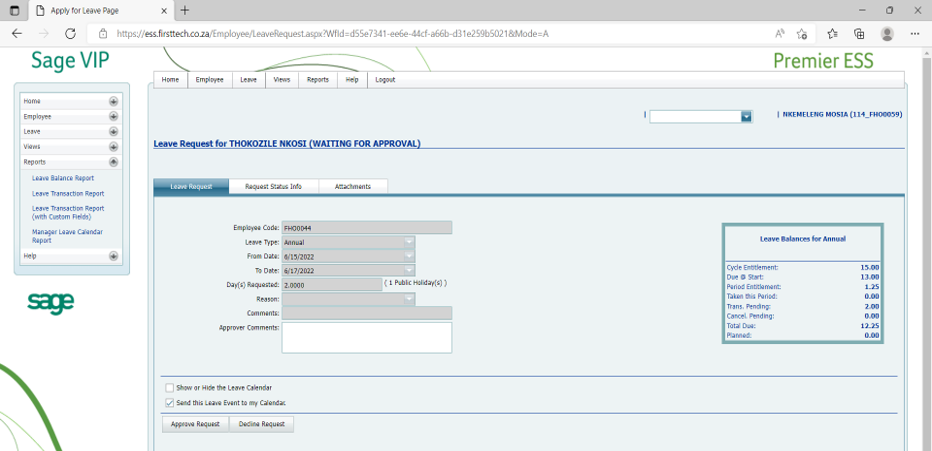
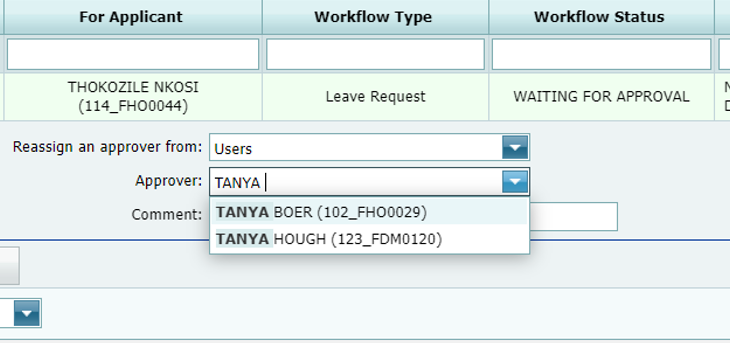
Reassign leave request
LEAVE MANAGER / APPROVER – REPORTS
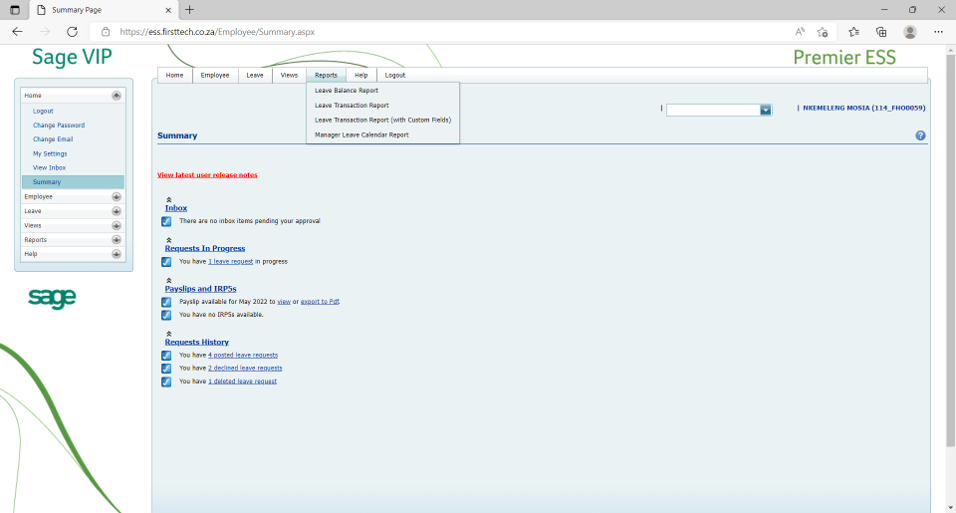
- Leave approver has additional Reports Tab.
LEAVE BALANCE REPORTS
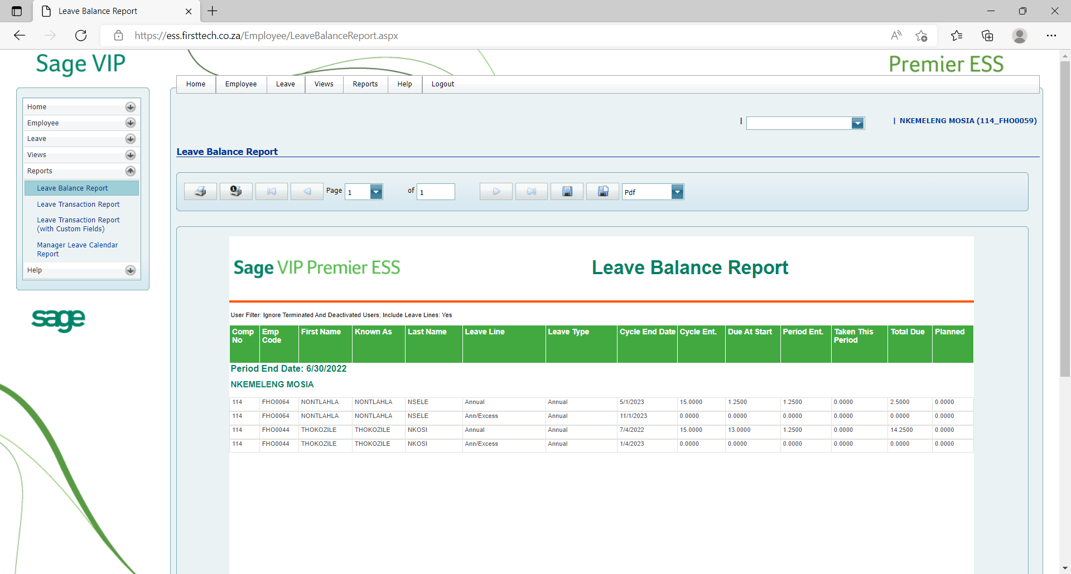
Allows viewing of leave balances for your reports.
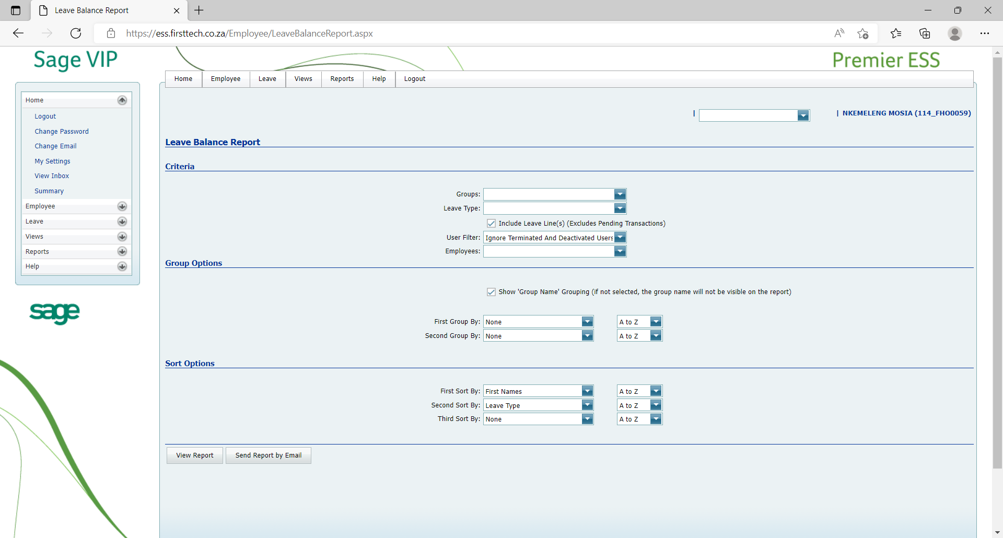
- Complete the fields as required.
- Option to Filer, group, and sort the report.
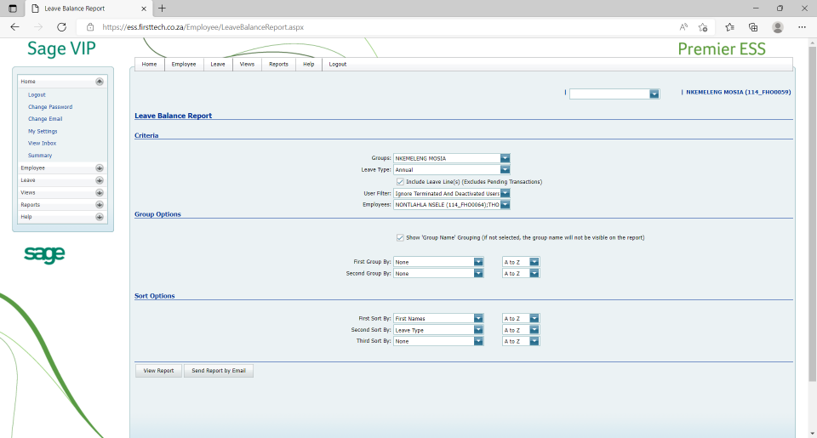
Example:
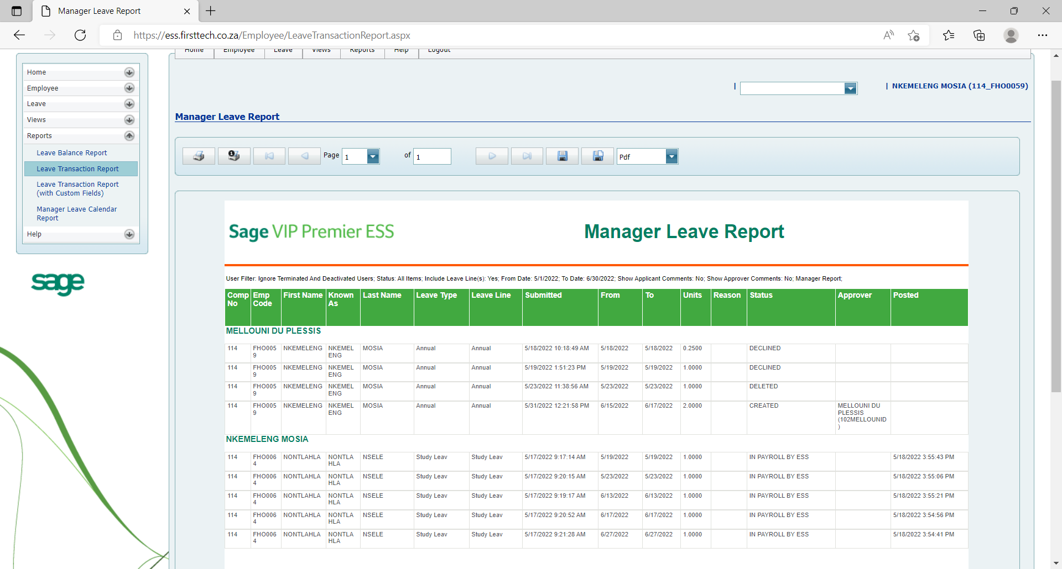
LEAVE TRANSACTION REPORTS
- Allows viewing of leave transactions for your reports.
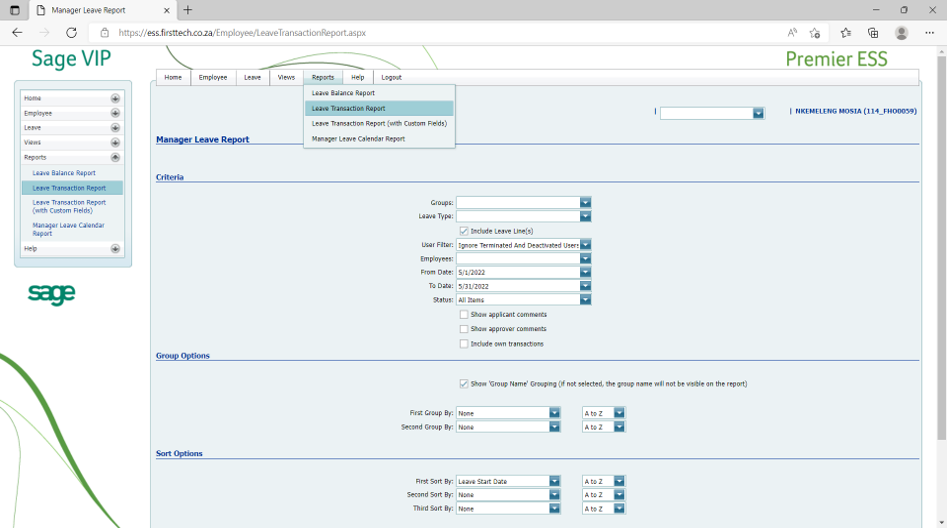
- Complete the fields as required.
- Option to Filer, group and sort the report.
- Option to include own transactions.
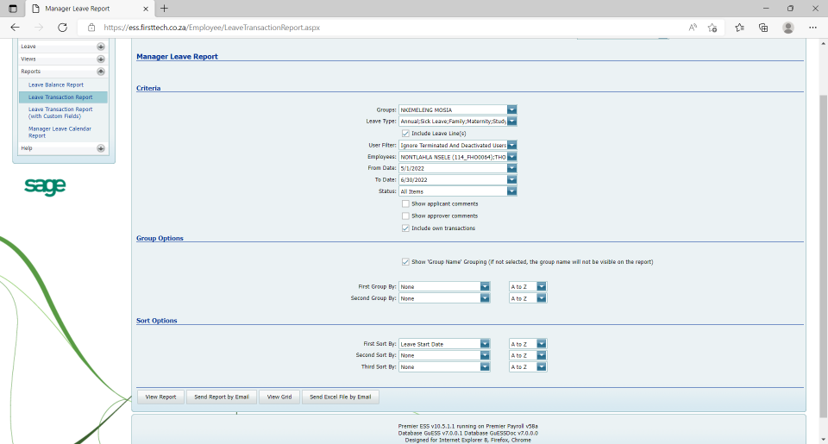
Example:
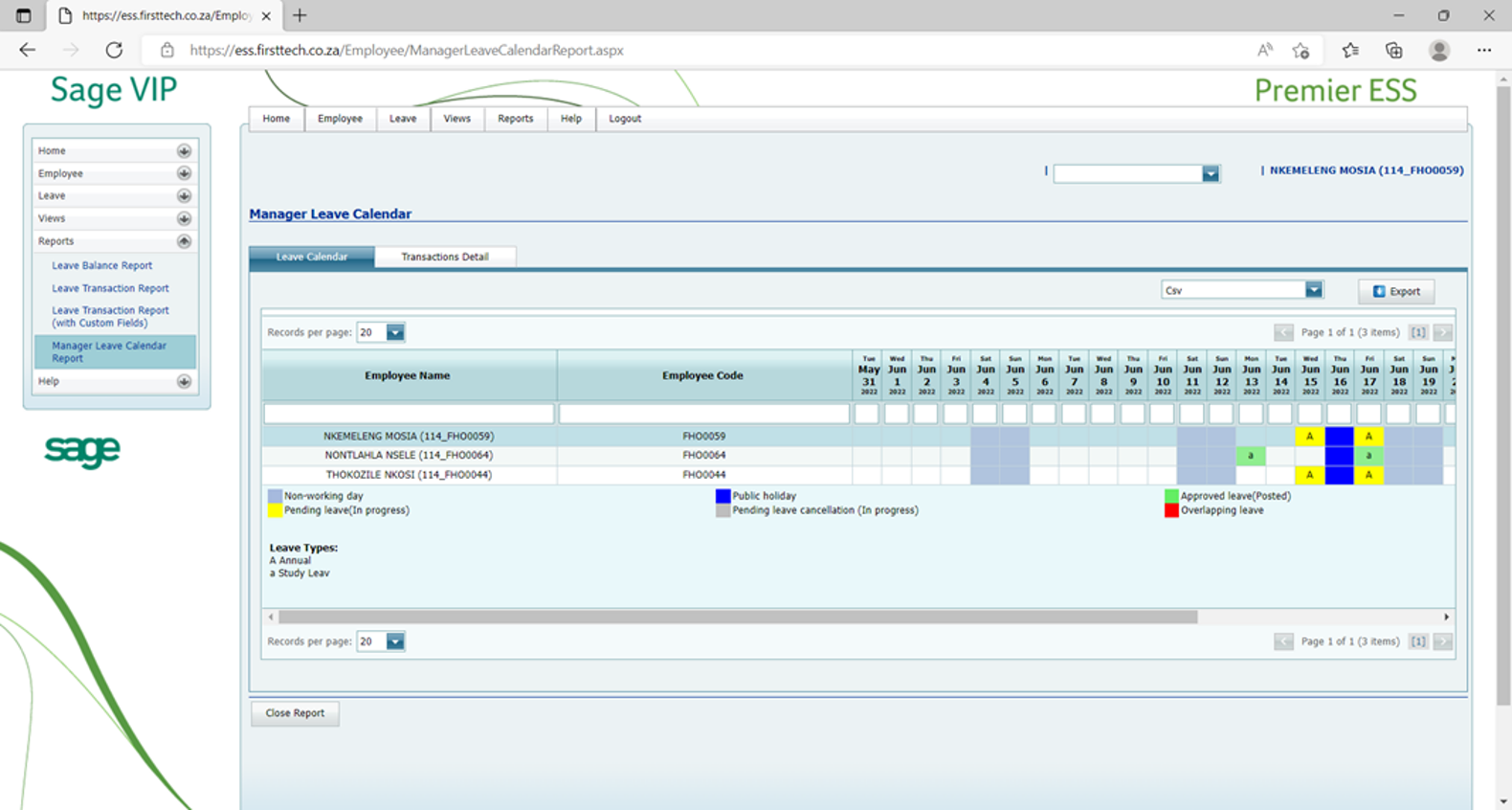
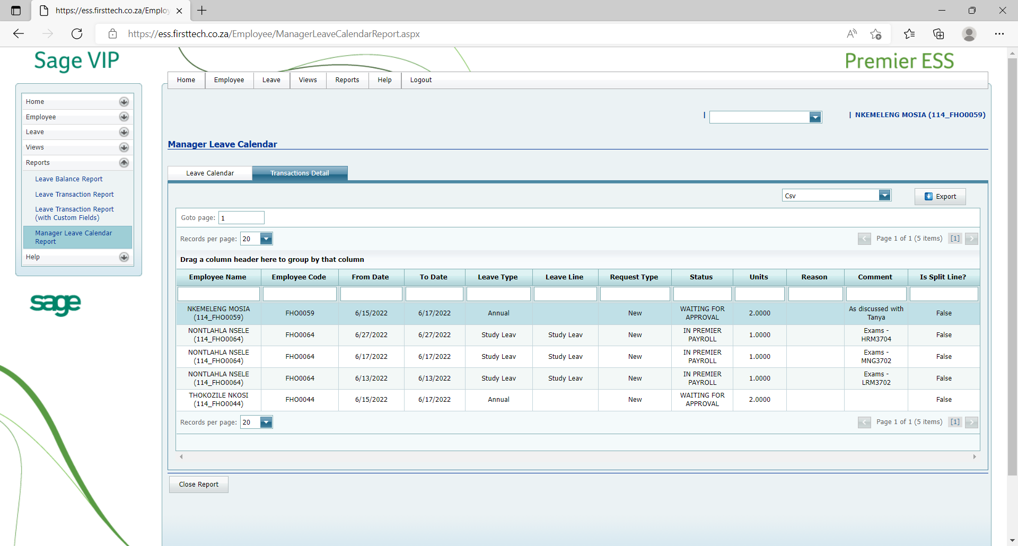
MANAGER LEAVE CALENDAR
“Leave Calendar” tab shows all the leave transactions as a picture.

- Transaction Detail tab shows all the leave transactions in more detail.
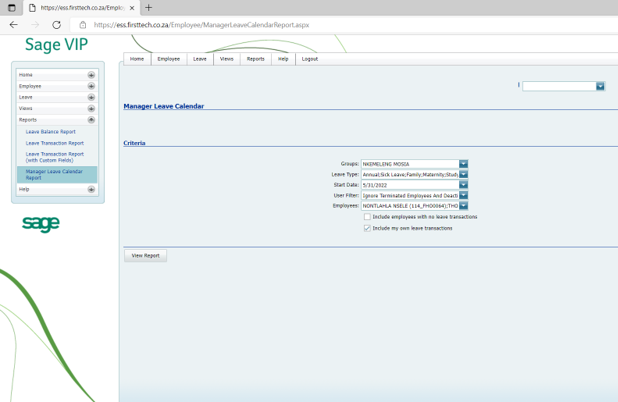
Example
Example
LEAVE MANAGER / APPROVER – IMPERSONATOR
- Impersonator profiles will have this block.
- Select the employee to personate.
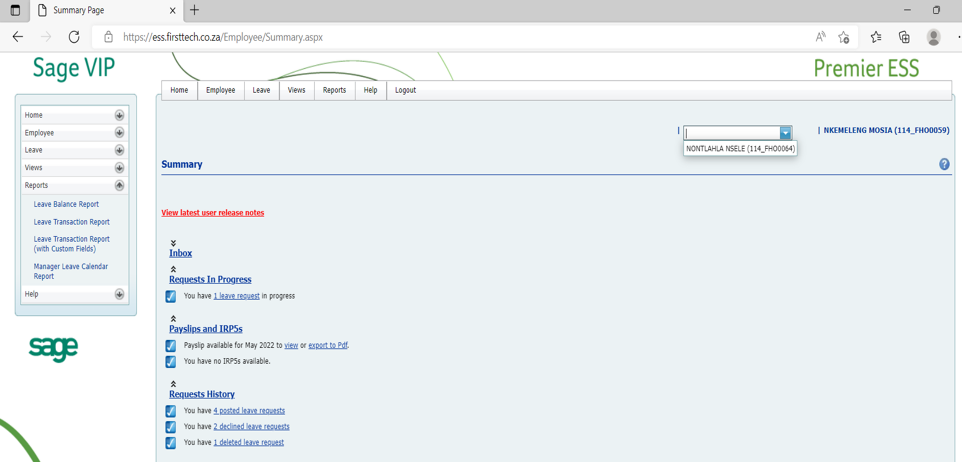
- Once the profile is selected, their profile becomes active for use.
- Impersonator has full access to the profile.