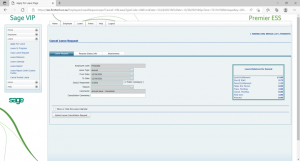
LOGIN
NB: Use the correct URL or ESS address: https://ess.firsttech.co.za/
Do not google the ESS address.
Check old ESS emails or email Nkemelengm@firsttech.co.za for assistance or reach out to your Human Resources Payroll Department
Best to save the address on your PC
THE LEAVE TAB
- Apply for leave
- Leave in progress
- Leave balances
- Leave calendar
- Leave report
- Cancel posted leave
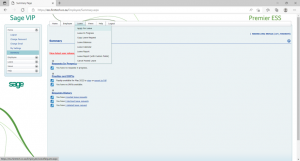
APPLYING FOR LEAVE
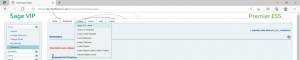
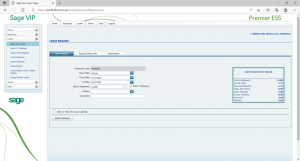
- Click “Leave” tab
- Click “Apply for leave”
- Select leave type (drop down)
- i.e., Annual, Sick, Study, etc.
- Select “from date” and “to date”
- “Day(s) Requested” will calculate automatically (excludes public holidays)
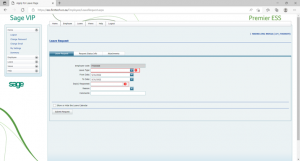
Ensure that the date and days are correct.
You can add comments if you need to.
NB Check that your leave balance is always positive.
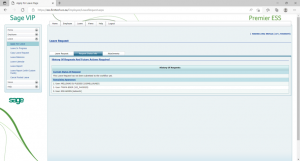
- Click on the “Request Status Info” tab to view your leave approvers.
ATTACHING DOCUMENTS
- Click on the “Attachments” tab.
- Under “Add Attachments” go to “Step 2: Upload the file” double click on it.
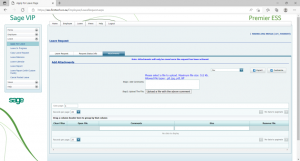
- Browse to the location of the attachment.
- Click on the attachment and select “Open”
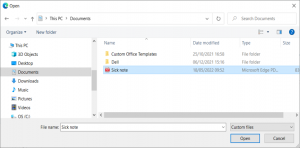
If attached correctly it will appear as below:

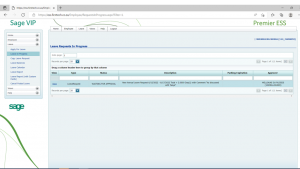
LEAVE IN PROGRESS
All leave in progress will reflect on this screen.
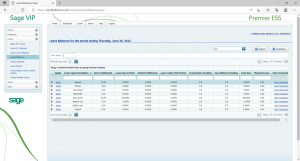
LEAVE BALANCES
“Leave Balances” tab Shows balances for all leave types.
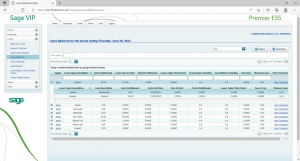
For Annual leave, click on the “+” box to expand and to view your annual or excess leave balance split.
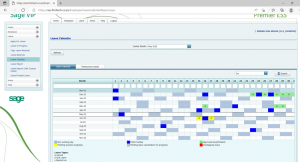
LEAVE CALENDAR
“Leave Calendar” tab shows all the leave transactions as a picture.
LEAVE REPORT
- Under the “Leave Report” tab, it will allow you to print your leave report
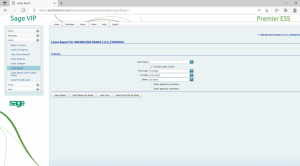
- You can print the report per leave type.
- You have the option to select the period to view.
- As well as status such as:
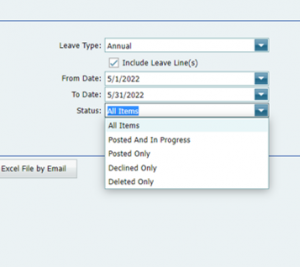
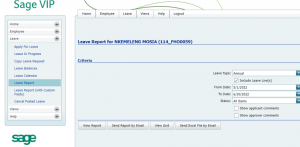
- Complete all fields as required
- At the bottom of the page. you have the option to view, send by email, or send by excel.
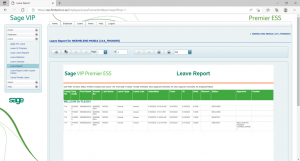
- A report will be generated
- And can also be printed to pdf or to a normal printer
CANCEL POSTED LEAVE
- This allows for cancellation of leave that was previously submitted.
- The cancellation goes through a similar process as the application.
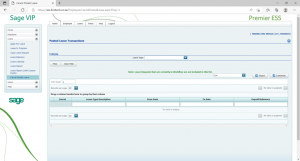
- Select Leave Type
- Click Filter
- All posted leave transactions will now appear
- Select the one you want to cancel
- Click Cancel:

- “Submit Leave Cancellation Request”