
CRM LEAVE REPORT
On CRM to capture the days when a user was on leave/taking leave the following will need to be done:
Add the days by selecting the NEW/Green + button to the right side of the screen.
Select New Appointment.

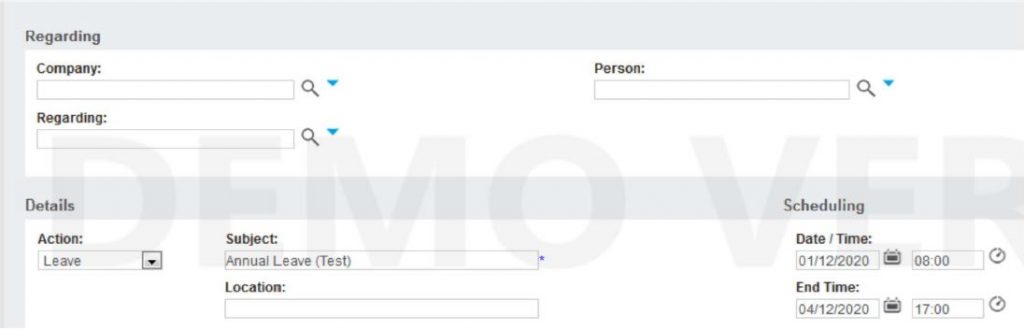
The below screen will open.
1) Under Action select Leave.
2) Add a note to the Subject field (Mandatory).
3) Under Scheduling choose the period.
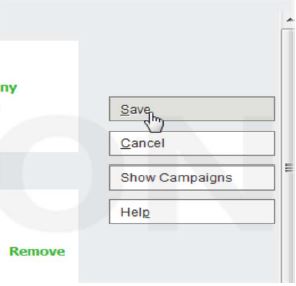
4) Then select SAVE on the far right of the screen.
To access the Leave Report for the above days captured go to:
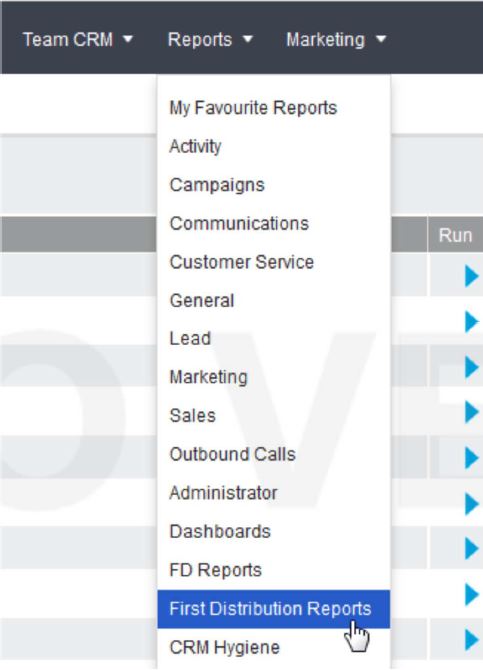
Reports – First Distribution – Leave Report
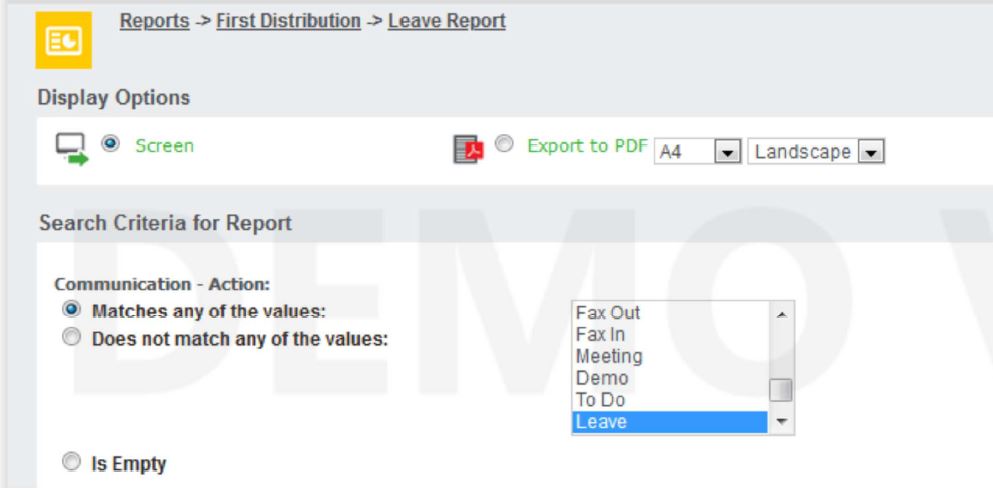
Make sure the Leave option is selected & then click on “Go”
The below report will appear. The report like the other CRM reports can be run in PDF & excel.

Course Content
Lessons
Status